5. The control panel
The control panel is the whole product: everything the appliance can do is reachable from the sidebar, and everything the sidebar reaches is described in this chapter. This page explains the frame — the parts that behave the same everywhere — so the per-page sections that follow can stay short.
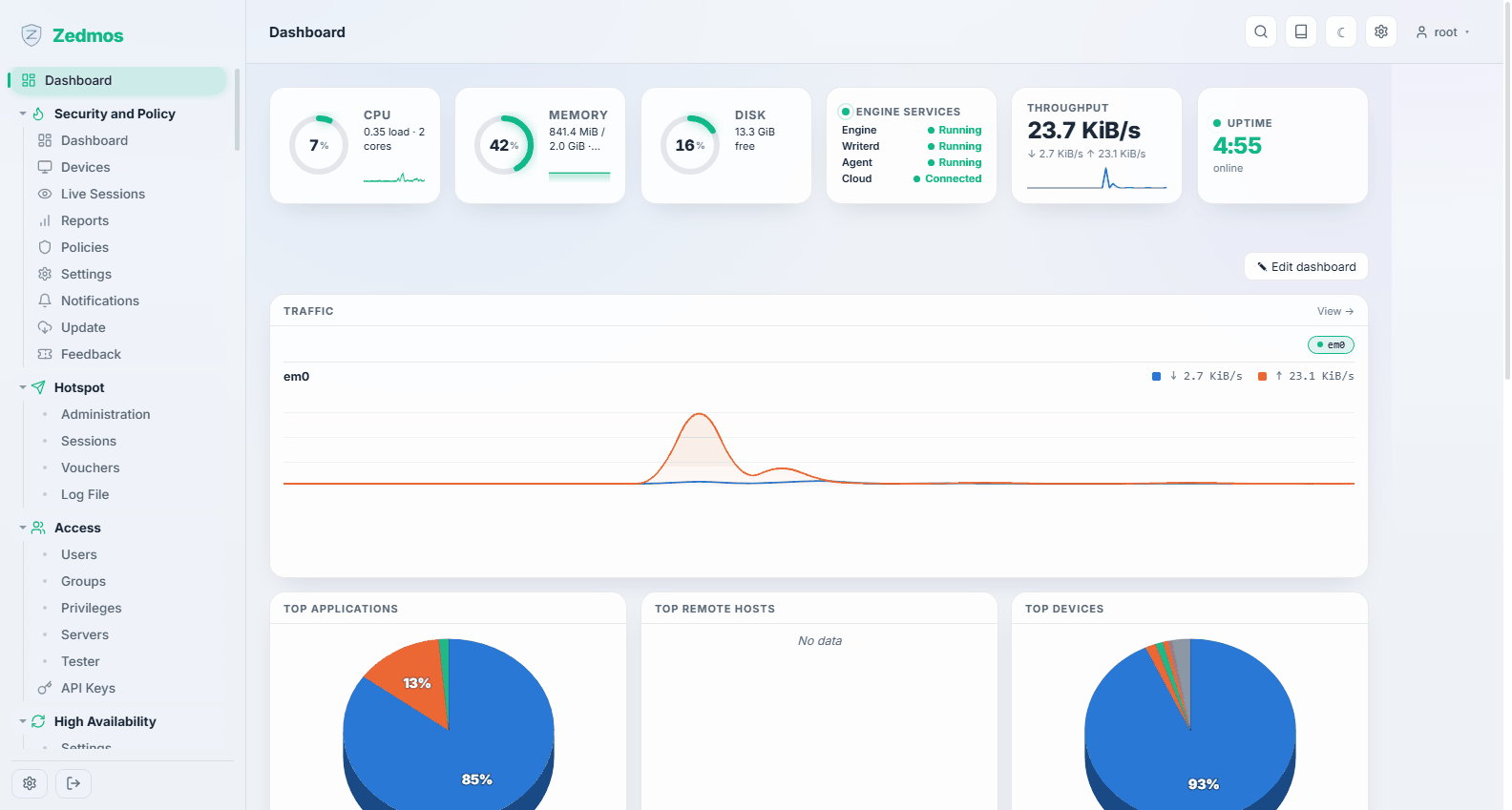
5.1 The frame
The sidebar is the menu. Groups expand in place; the group holding the page you are on opens itself. You can move it: Appearance → Menu placement puts it left, right, along the top or along the bottom.
The toolbar, top right, carries four things:
| Search | Click it (or press Ctrl + K, or /) and the box grows leftward. Type a few letters of a page, a menu group or a feature; results list the menu path so two pages with the same name can be told apart. Arrow keys move, Enter opens. |
| Documentation | Opens this brand's documentation site in a new tab. |
| Theme | Flips between light and dark. The appliance ships light; the choice is remembered in your browser, not on the appliance, so each administrator picks their own. |
| Appearance | Theme presets, accent colour, density, menu placement, and the dashboard widget list. |
| Account | Who you are signed in as, Change password, API keys, and Sign out. A read-only account is labelled as such here. |
The breadcrumb, top left, always names where you are.
5.2 How pages behave
Most configuration pages are one of two shapes.
Grids list rows — rules, users, certificates, DHCP ranges. The toolbar above the grid adds a row; the pencil edits one; the cross deletes one, always behind a confirmation. Many grids also carry a toggle that enables or disables a row without deleting it, which is the safe way to test whether a rule is the one breaking something.
Forms are settings pages: fields with help text under them. Fields marked advanced are hidden until you click Show advanced — they exist, they are just not part of the normal path.
Saving applies. When you press Save, the appliance reconciles the change into the running system immediately: it rewrites the service's configuration, reloads or restarts what needs it, and rebuilds the firewall ruleset. There is no second "Apply changes" step to remember and no pending-changes banner. A few pages (NAT, for instance) still offer an explicit Apply button where a deterministic reload point is useful.
That has a consequence worth internalising: a mistake takes effect at once. Before changing anything that could cut your own path to the appliance — the interface you are connected through, the web GUI's own port, a firewall rule on that interface — read Troubleshooting first. The appliance has a deadman-switch that rolls a change back when it notices it has locked out its administrator, but the cheap way to survive a lockout is not to cause one.
5.3 Status pages, log pages, diagnostics
Alongside the configuration pages there are three families of read-only pages, and telling them apart saves time:
- Status pages show what a service is doing right now — WireGuard's handshakes, IPsec's security associations, the DHCP leases actually handed out, ClamAV's signature age. When a feature "does not work", the status page is where the truth is.
- Log File pages show what a service said. Every service has one, always in the same place: the last entry of the group's menu.
- Diagnostics pages are tools you run: ping, traceroute, packet capture, the ARP table, the pf state table.
5.4 The menu, group by group
| Group | What lives there | Section |
|---|---|---|
| Dashboard | The board: live status, traffic, capabilities, certificates | Dashboard |
| Security and Policy | The security engine: devices, sessions, policies, reports | Security and Policy |
| Network | Interfaces, gateways, routes, virtual IPs, wireless, network diagnostics | Network |
| Firewall | Rules, NAT, aliases, schedules, shaping, firewall logs and diagnostics | Firewall |
| VPN | IPsec, OpenVPN, WireGuard | VPN |
| Services | DHCP, DNS, NTP, antivirus, router advertisements | Services |
| Hotspot | Captive portal: zones, sessions, vouchers | Hotspot |
| Access | Users, groups, privileges, authentication servers, API keys | Access |
| System | Settings, trust, firmware, backups, logs, compliance | System |
| High Availability | Configuration sync and the pair's live state | High Availability |
| Console and SASE | The appliance's outbound link to its management hub | Console and SASE |
| Power | Reboot and shut down | Power |
Groups appear only when they have something to show: the Security and Policy group exists when the security engine is installed, Hotspot when the captive portal is present. A menu that is shorter than this table is not a fault.