5.3 Network
Everything about where the appliance is attached and how traffic leaves it: the interfaces themselves, the gateways beyond them, the routes that choose a gateway, and the tools for finding out why none of that is behaving.
Interfaces — /interfaces
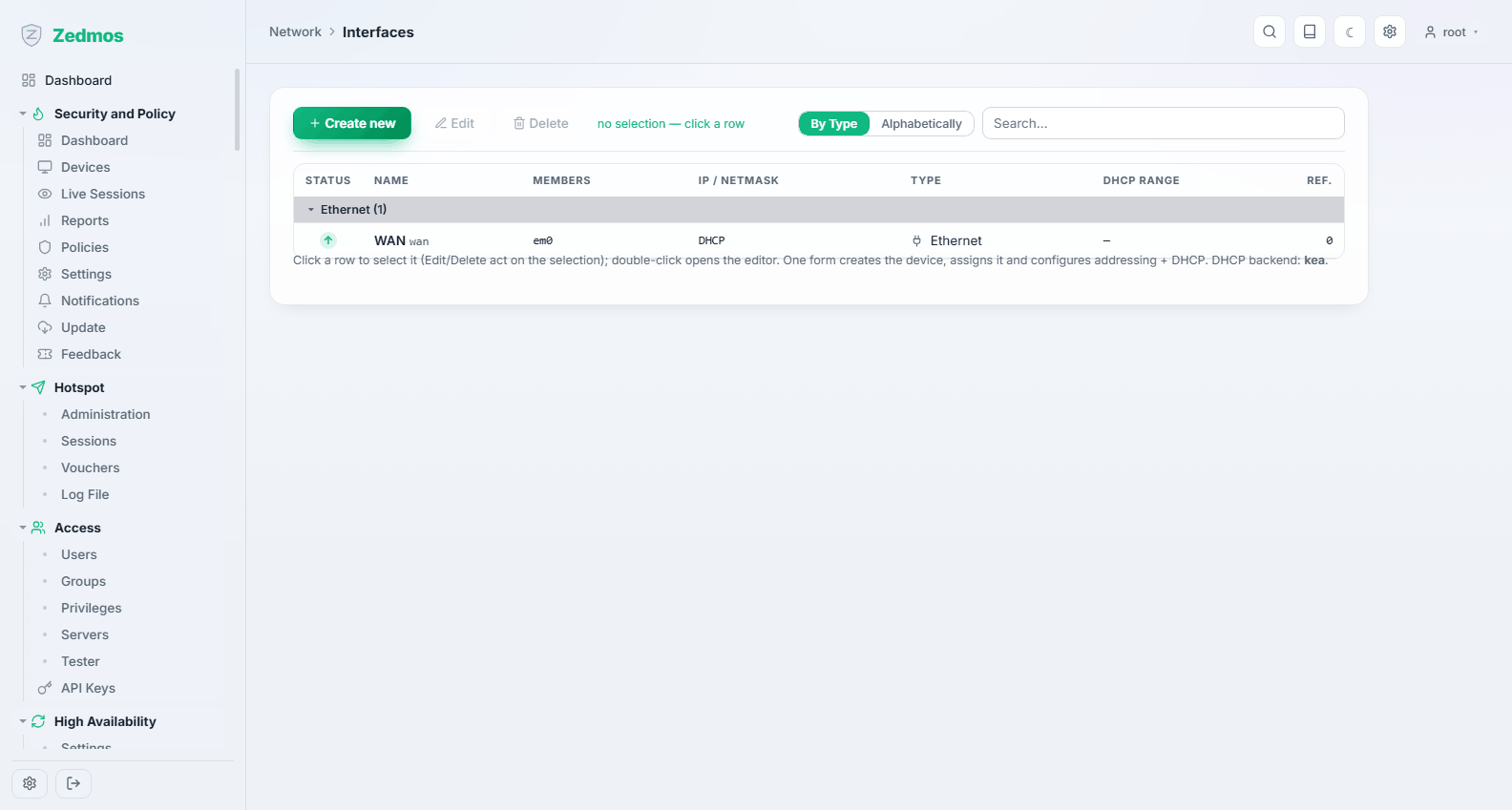
One table for every interface the appliance has: its status, the name you gave it, the underlying device or devices, its address, its type, and whether it hands out DHCP. Group the table By Type or Alphabetically, and search it when the list grows.
Click a row to select it — Edit and Delete act on the selection — or double-click to open the editor directly.
Creating an interface
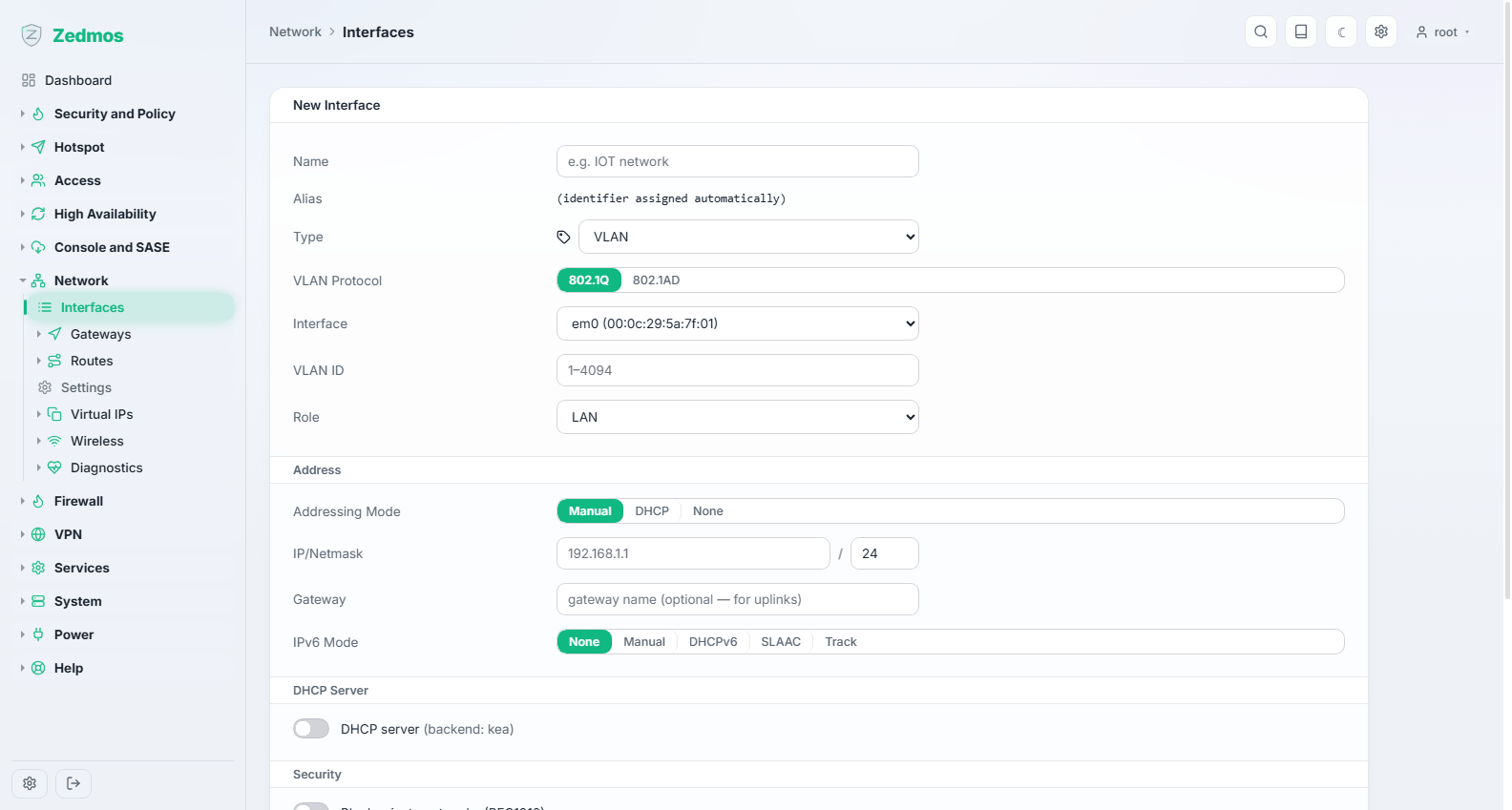
Create new opens one form that does what other firewalls split across three pages: it creates the device, assigns it, and configures its addressing and DHCP in a single save.
| Field | What it means |
|---|---|
| Name | What you will call it everywhere else — IOT network, Guest, Branch link. |
| Type | What kind of interface to make: a plain Ethernet assignment, or a VLAN, bridge, LAGG, PPPoE and the other virtual device types. The fields below change with the choice. A bridge member or LAGG port belongs to one bridge or LAGG only and carries no addresses of its own. |
| VLAN Protocol / Interface / VLAN ID | For a VLAN: the tag protocol (automatic: 802.1Q; a VLAN that other VLANs are stacked on is the outer tag of a Q-in-Q pair and gets 802.1ad), the parent device (a network card, a LAGG, or another VLAN for Q-in-Q), and the tag (1–4094). |
| Role | LAN or WAN. This is not cosmetic: it decides the default firewall treatment and whether the interface is treated as an uplink. |
| Addressing Mode | Manual (you type the address), DHCP (ask upstream — the normal choice for a WAN), or None (no address, e.g. a bridge member). |
| IP/Netmask | The address and prefix length when addressing manually. |
| Gateway | Only for uplinks: the gateway this interface reaches the world through. |
| IPv6 Mode | None, Manual, DHCPv6, SLAAC, or Track (derive a prefix from another interface — how a LAN gets IPv6 from a WAN delegation). |
| DHCP server | Turn it on and give the range here; the appliance configures the DHCP backend for you. |
| Security | Block private networks and block bogon networks — sensible on a WAN facing the internet, wrong on an internal link. |
Do not renumber the interface you are connected through without a plan. The change applies as soon as you save, your session drops, and you have to come back on the new address. Make such changes from the console, or from a second interface.
Gateways
Configuration — /gateways
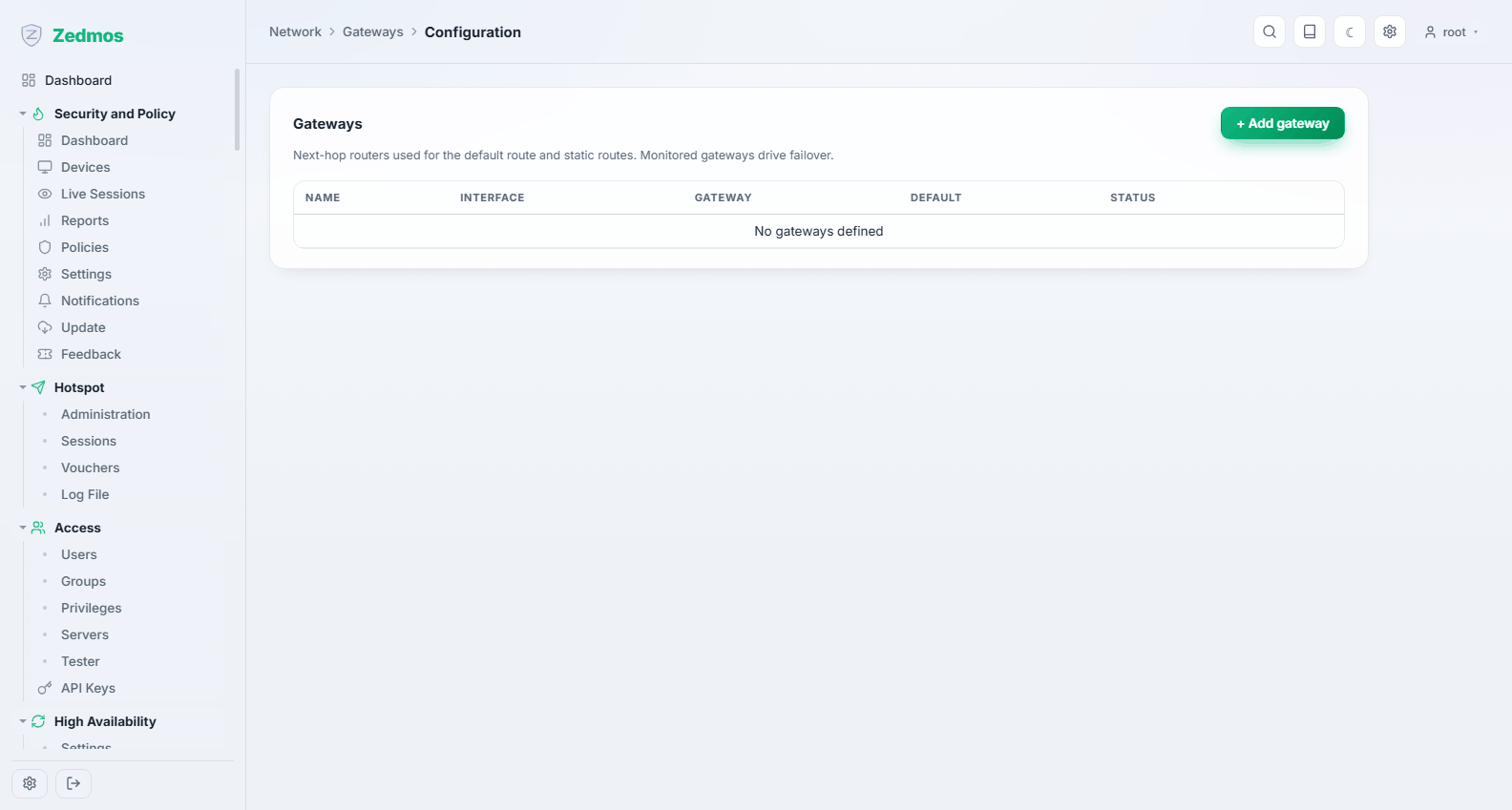
Every gateway the appliance can send traffic to, with its address, the interface it lives on, its priority, and whether it is up. A gateway with monitoring enabled is pinged continuously; the loss and latency shown here are what failover decisions are made from.
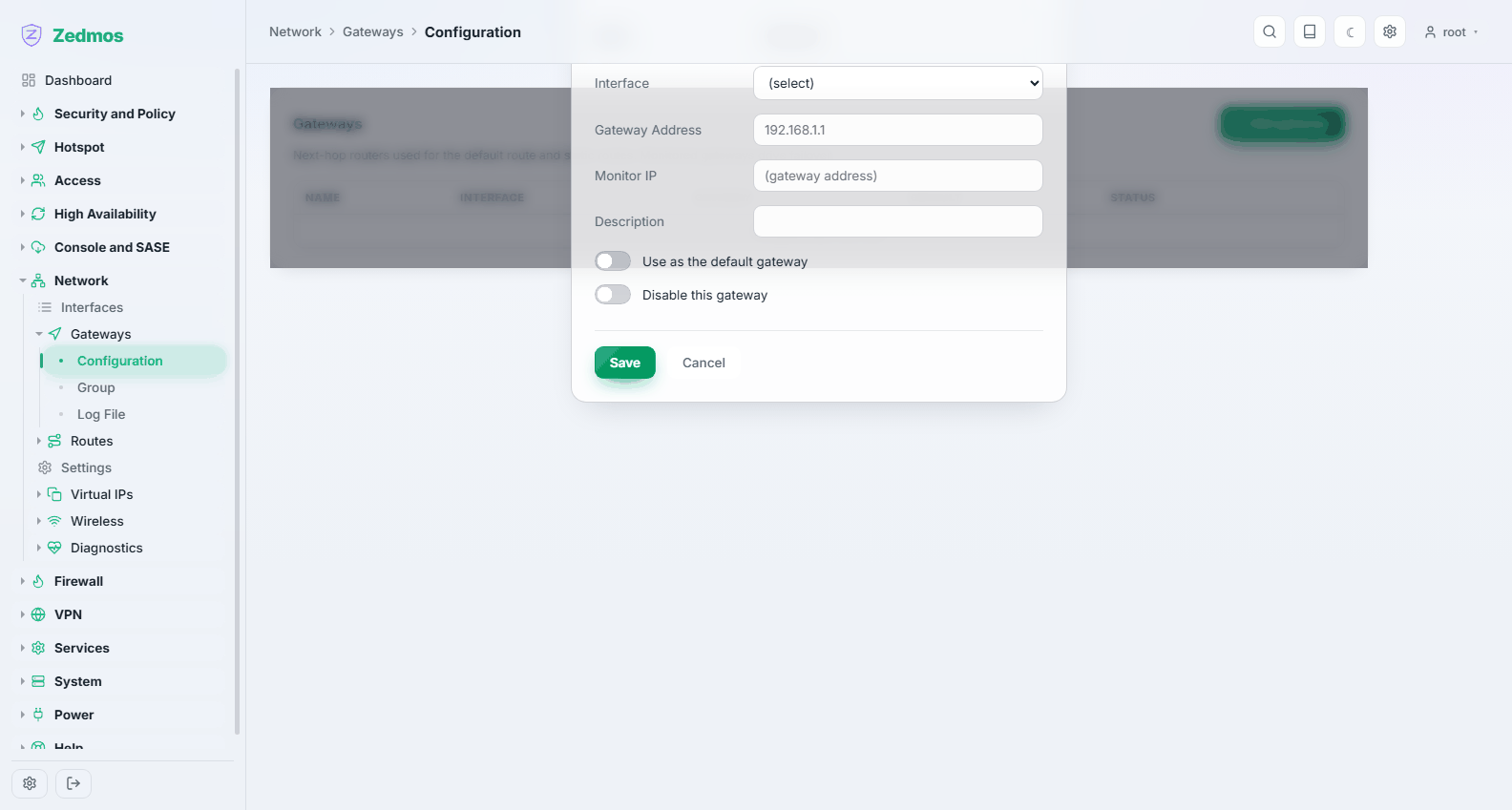
The fields that matter: the interface and the gateway's address, the priority (lower wins when several can reach the same destination), the monitor IP (something reliably reachable through that gateway — an upstream router or a public resolver, not the gateway itself if the gateway answers pings while the line behind it is dead), and upstream gateway, which marks it as a default route candidate.
Group — /m/routing/gateway_group
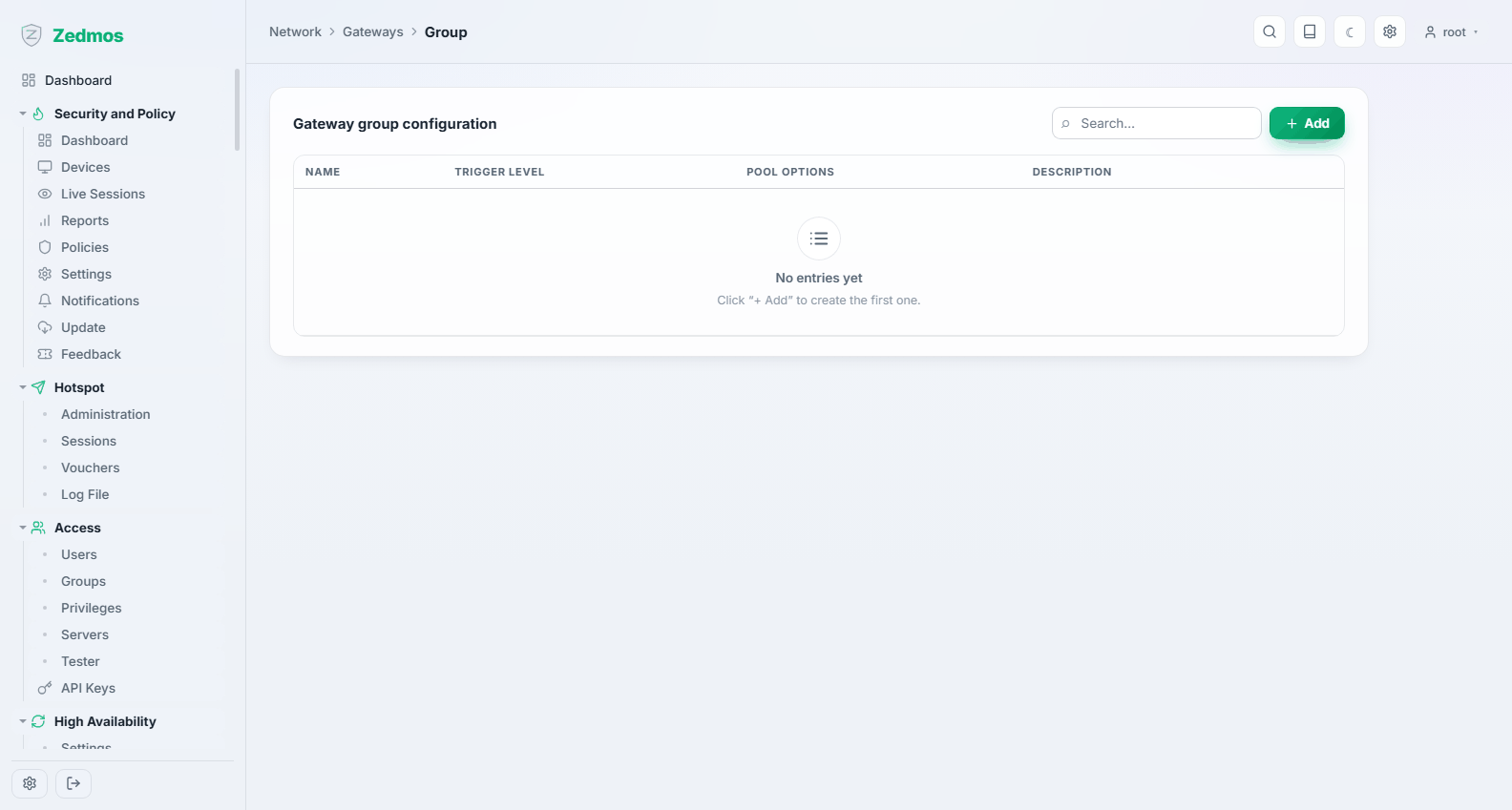
A gateway group turns several gateways into one target that rules can point at. Each member sits in a tier: tier 1 is used while it is up, tier 2 takes over when everything in tier 1 is down, and so on. Members in the same tier share the load.
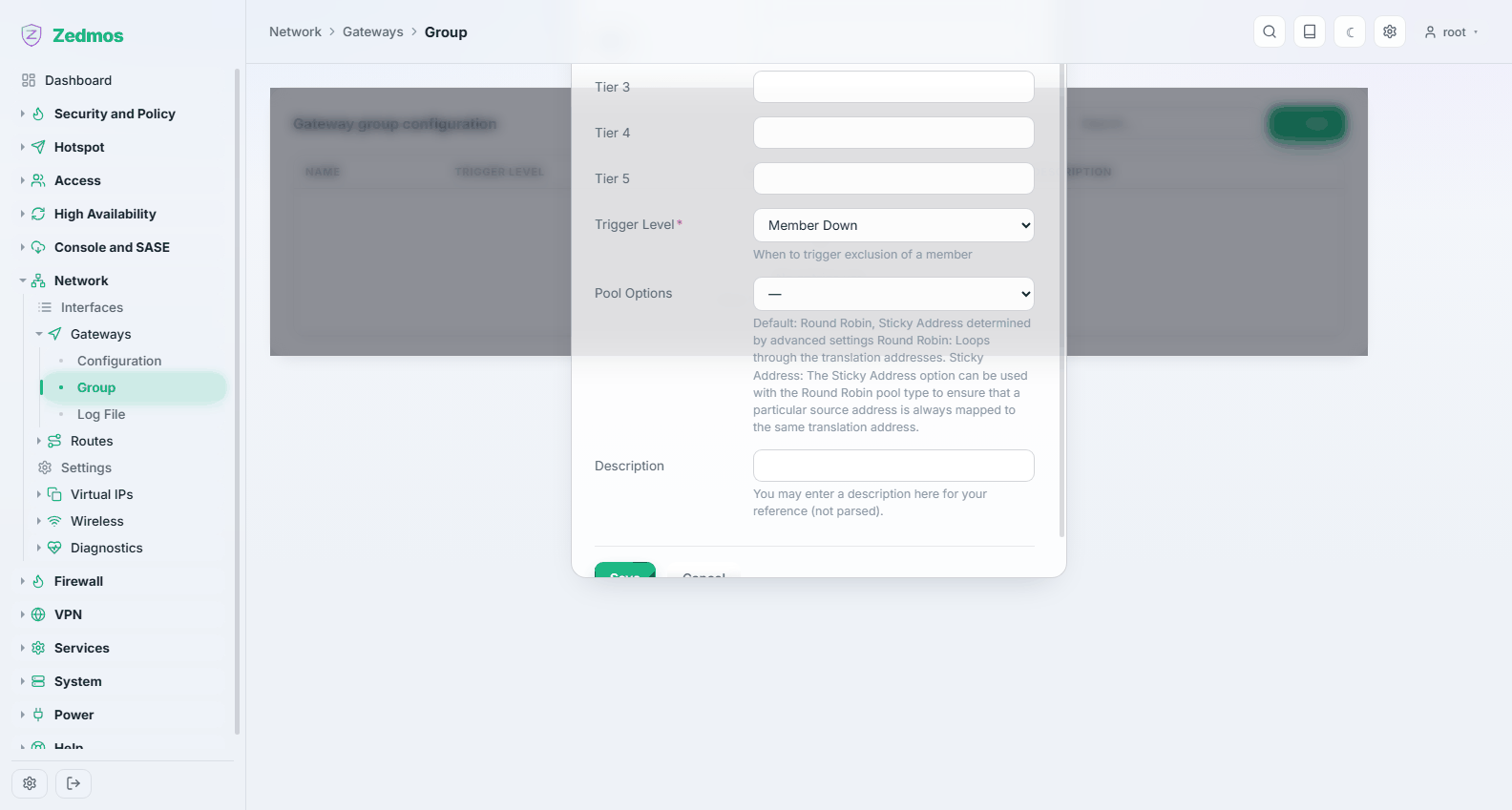
This is the mechanism behind dual-WAN failover: put both uplinks in a group, then point the LAN's outbound rule at the group instead of a single gateway. See Use cases → Two uplinks with failover.
Log File — /log/core/gateways
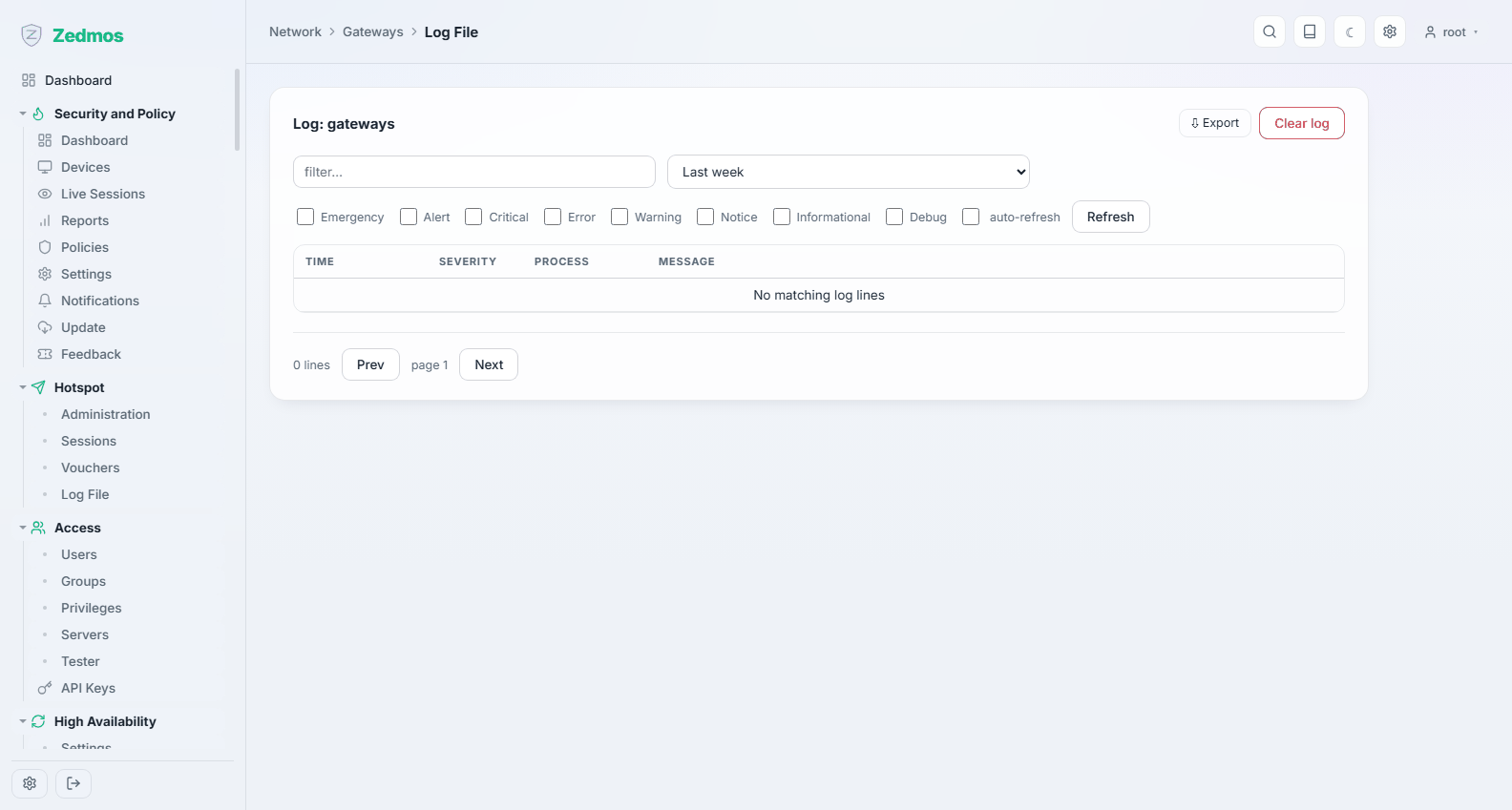
What the monitoring daemon has been reporting: a gateway going down and coming back leaves a line here, which is how you prove a line is flapping rather than "the internet being slow".
Routes
Configuration — /routes
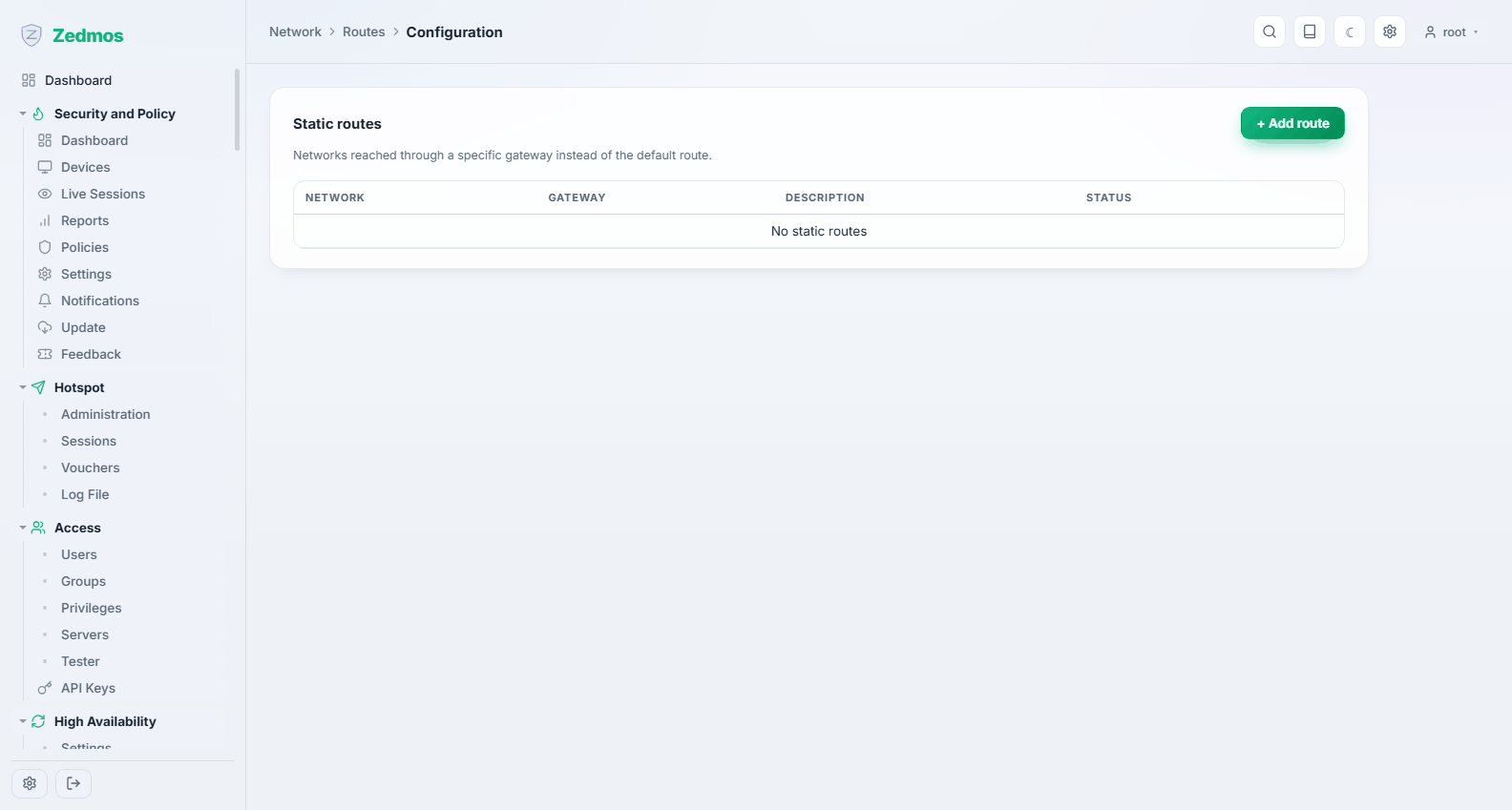
Static routes: "to reach this network, hand the traffic to that gateway". You need them when a network behind a router on your LAN is not reachable through the default gateway.
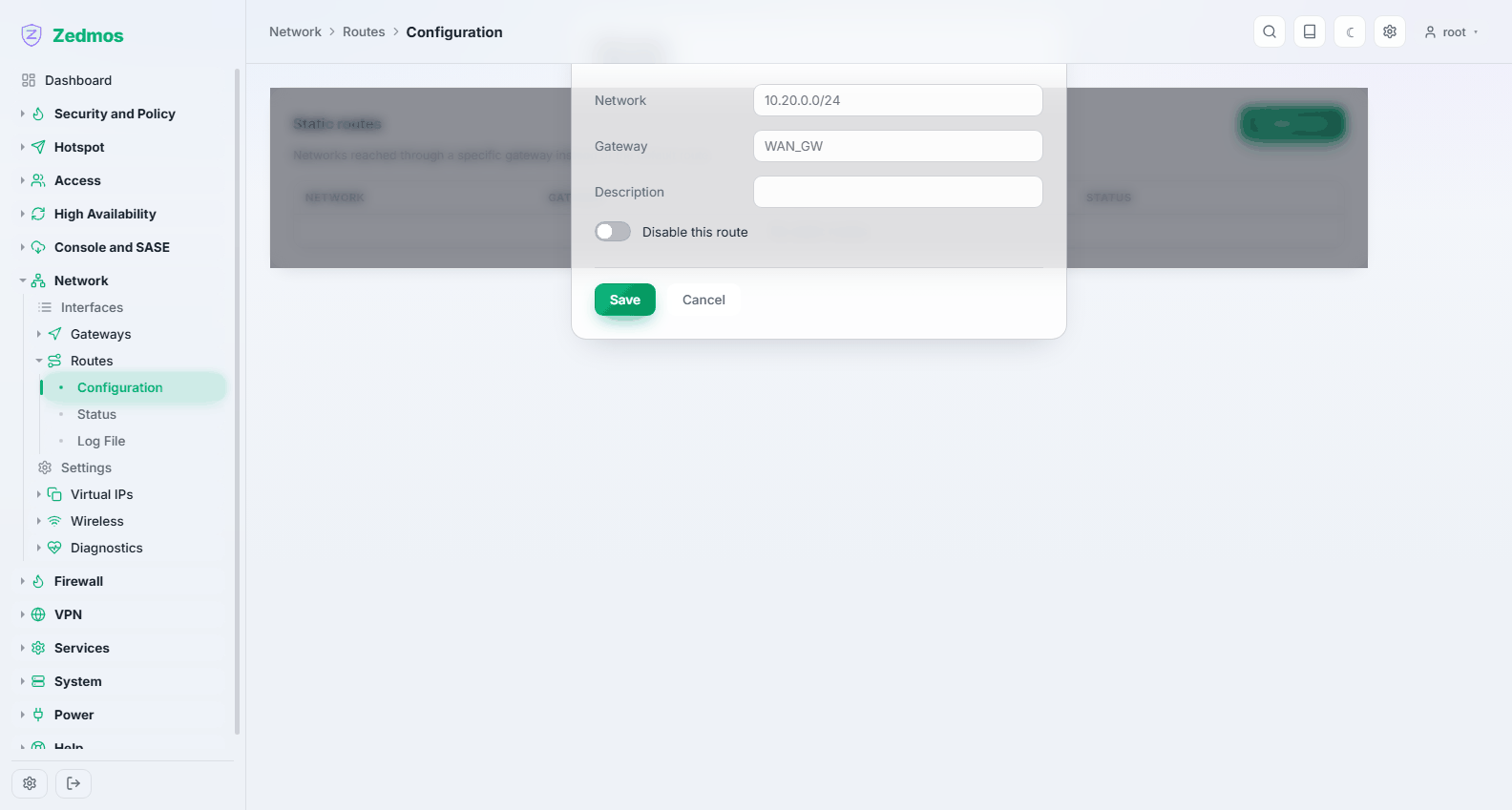
Give the destination network in CIDR form and pick the gateway. Disabled routes stay in the list, which makes a route easy to test by turning it off.
Status — /diag/routes
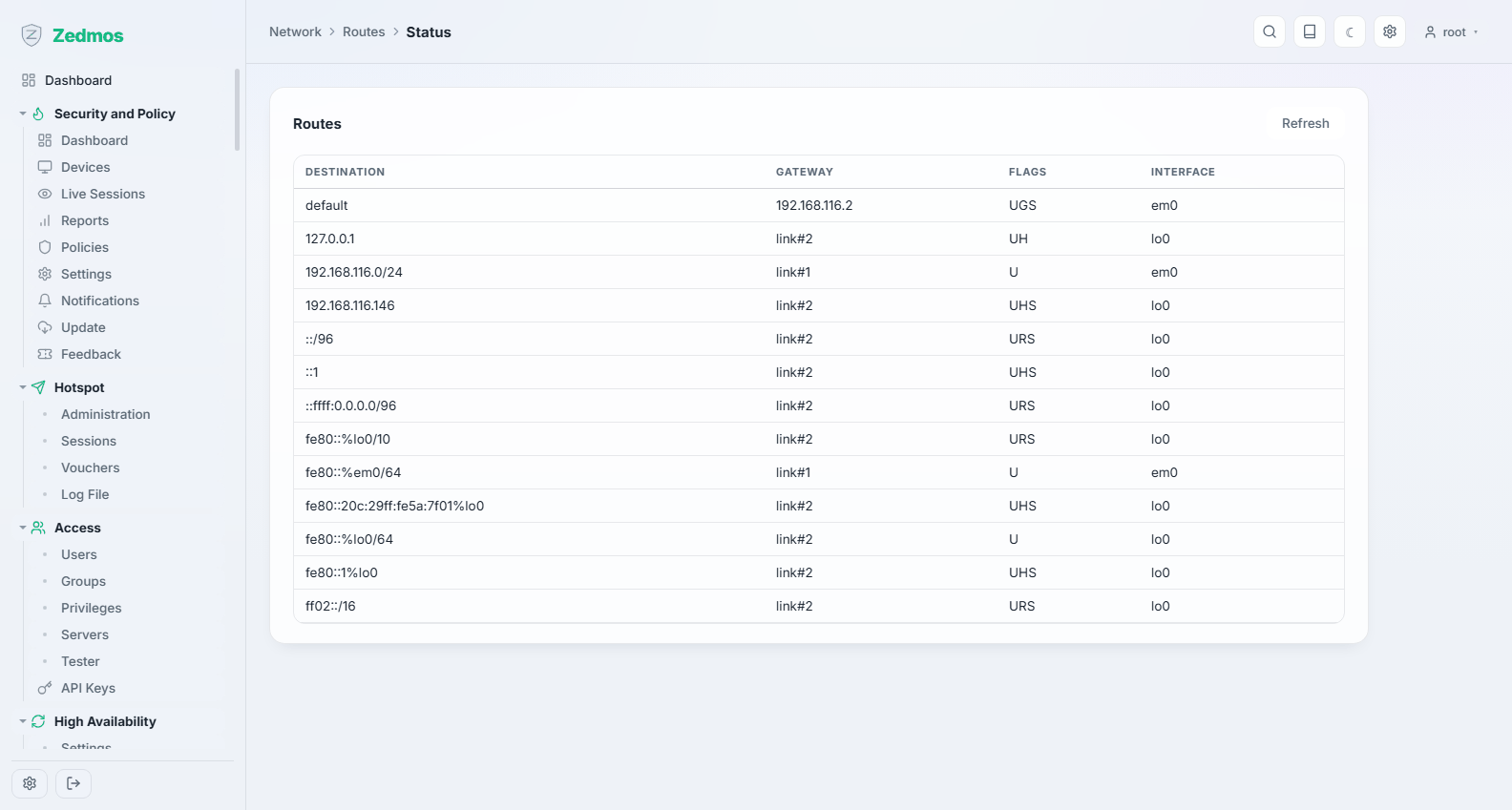
The kernel's actual routing table — what the appliance will do, as opposed to what you configured. When a static route "does not work", compare the two: a route that is missing here never took effect, and a route that is present but unused is being beaten by a more specific one.
Log File — /log/core/routing
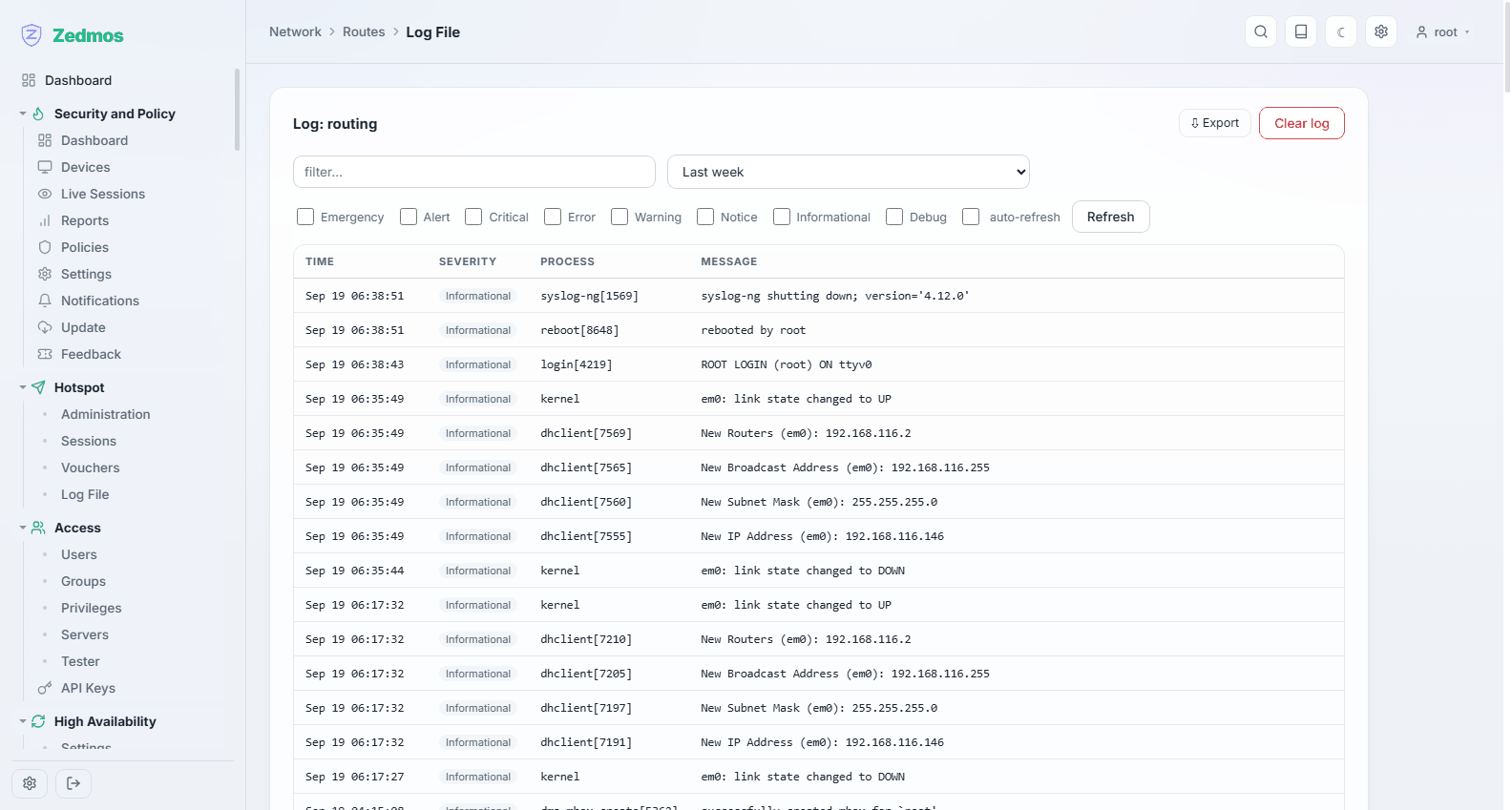
Routing changes as they happen, including the ones made automatically when a gateway fails over.
Settings — /m/interfaces/settings
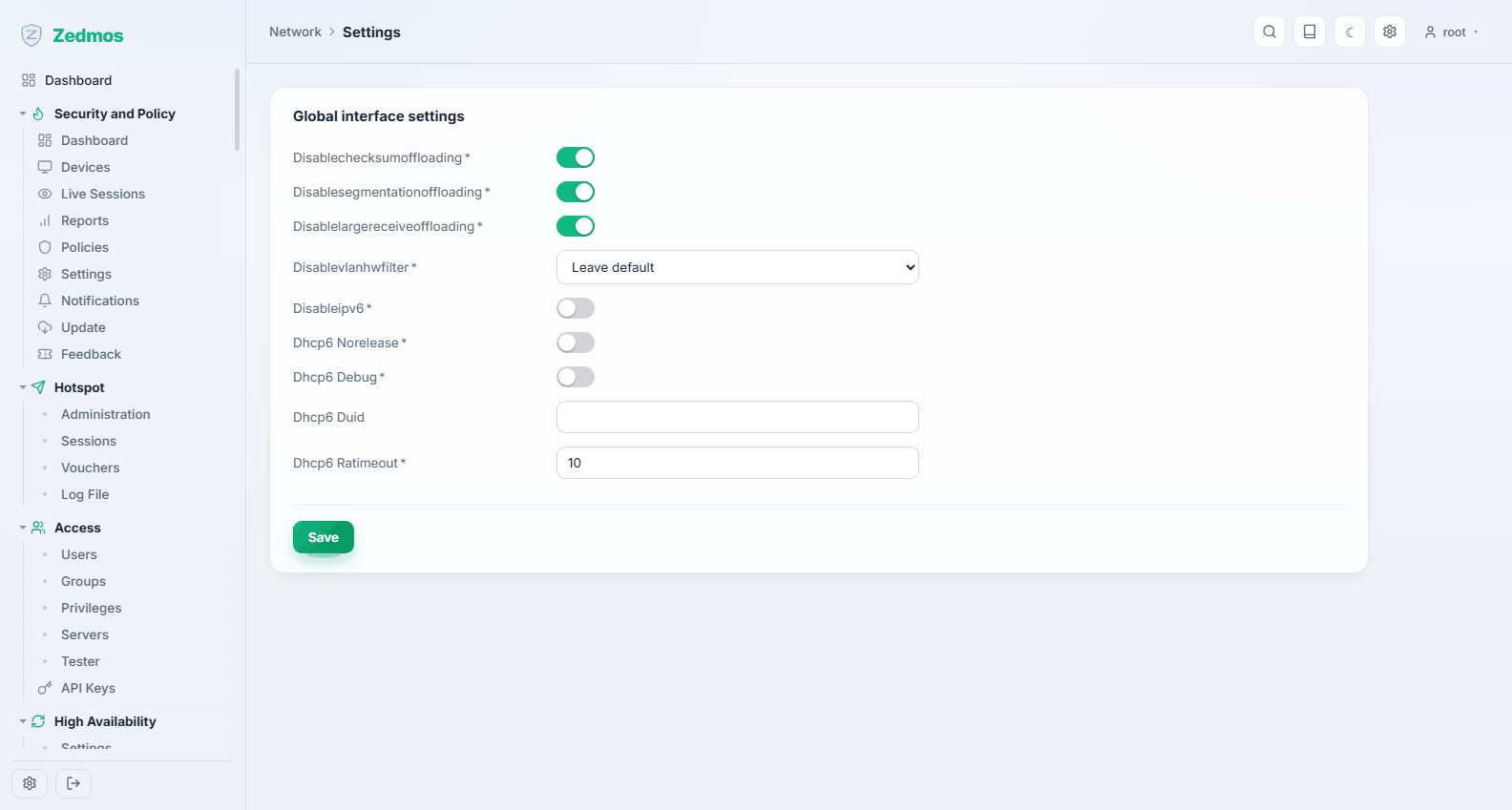
Global behaviour shared by every interface: hardware offloading, IPv6 handling, and the other knobs that belong to the network stack rather than to one link.
The offloading switches are checked by default: the kernel, not the card, computes checksums and segments TCP, and received packets are not merged (a firewall must forward them as they arrived). Block all IPv6 drops every IPv6 packet that arrives on any interface: IPv6 to and through the appliance stops, and so does its own, because neighbour discovery arrives as IPv6 too. The interfaces keep their IPv6 settings. The DHCPv6 client options (DUID, debug logging, keeping leases on stop) take effect by restarting the client, which happens on save.
Offloading options are a common cause of strange symptoms — throughput that collapses under load, or checksums that fail on one NIC model. If you are chasing something like that, this page is where you turn the relevant offload off. Change one thing at a time.
Virtual IPs
Settings — /m/interfaces/virtualip
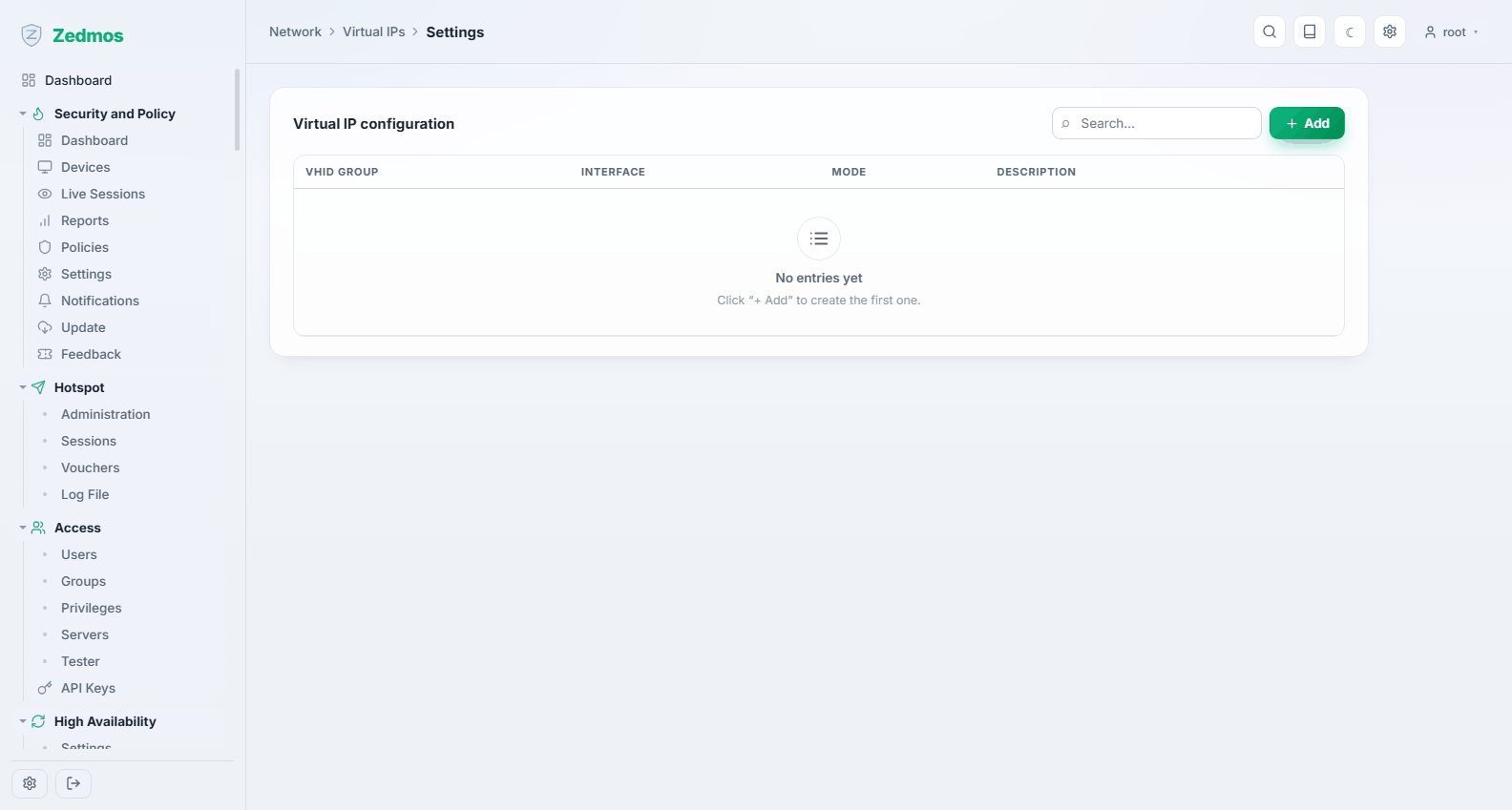
Extra addresses the appliance answers on, beyond the one configured on the interface. Types:
- IP Alias — an additional address on the same interface. The normal way to publish several public addresses.
- CARP — a shared address owned by whichever node in a high-availability pair is master. This is what makes a failover invisible to clients; see High Availability.
- Proxy ARP — the appliance answers ARP requests for the address without holding it, so traffic to it arrives here for NAT; no service on the appliance can use it. IPv4 only: a single address or a network of up to 256 addresses (/24).
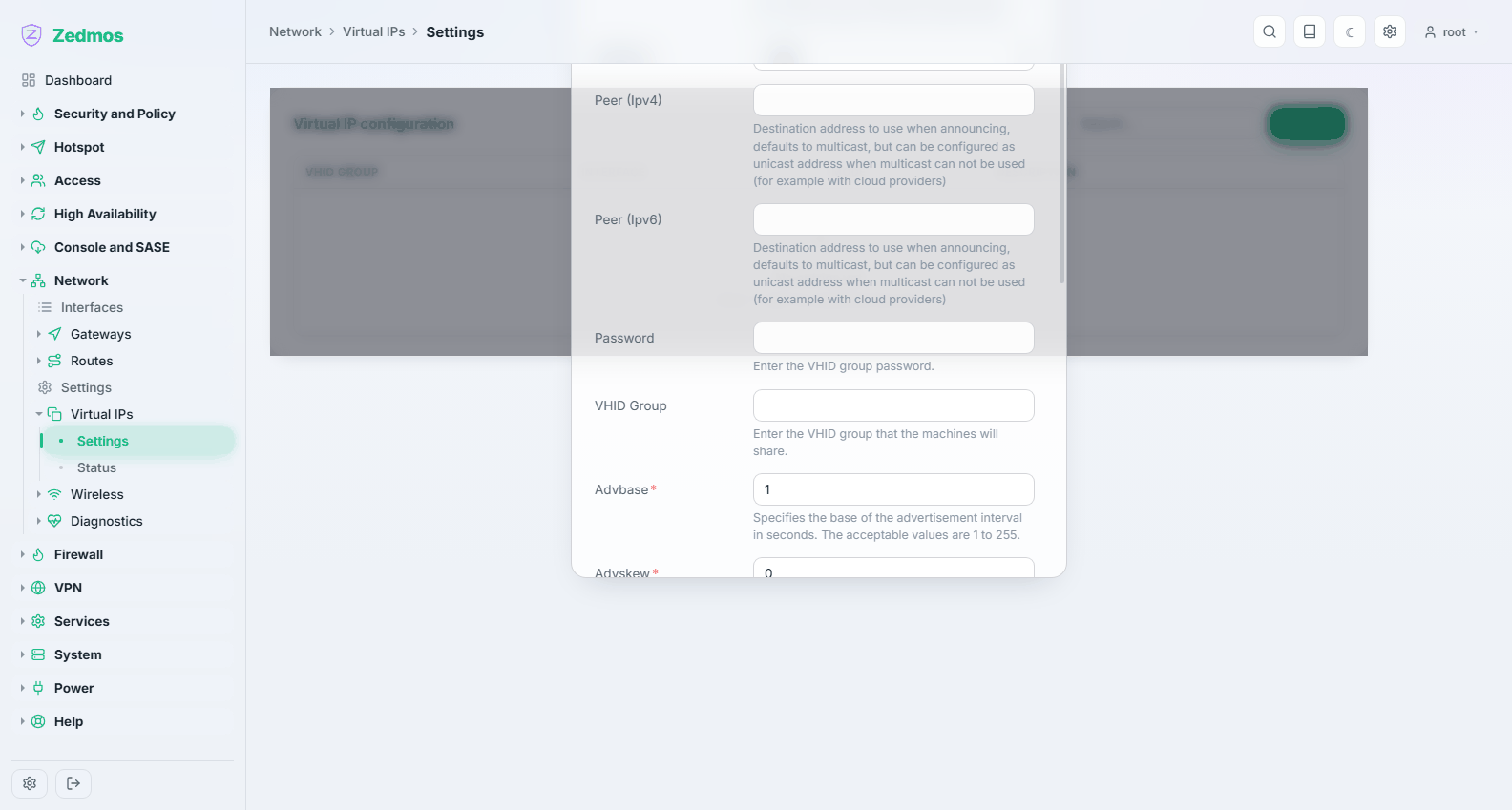
A CARP address needs a VHID and a password, the same on both nodes. A VHID carries one CARP address per interface; further addresses join the group as IP aliases bound to its VHID. A virtual IP that NAT rules, bound aliases or tunnels still use cannot be deleted or re-addressed until they are changed.
Status — /diag/vip
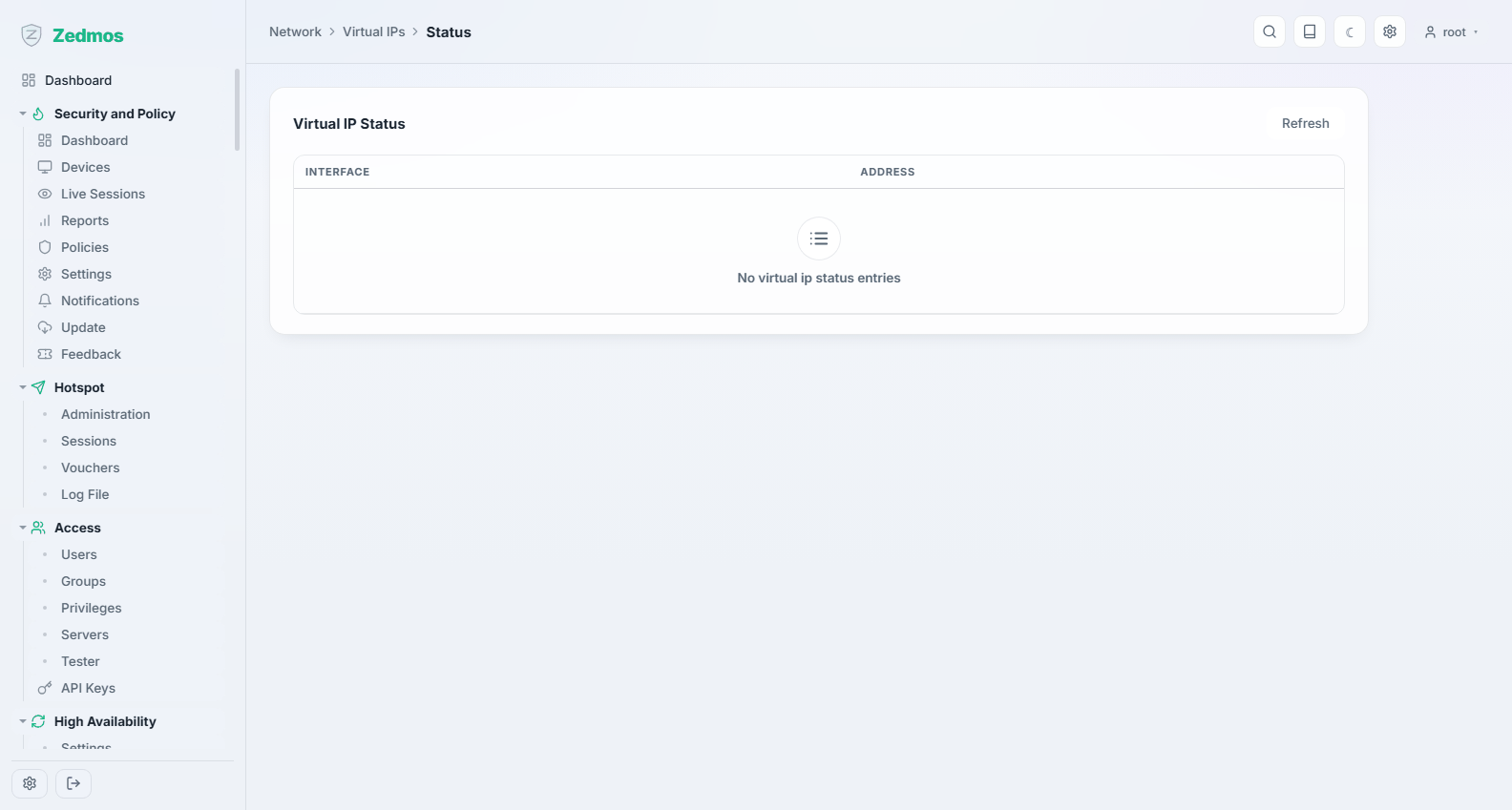
Which virtual addresses are live, and for CARP, whether this node is master or backup. On a pair, check this page on both nodes: two masters at once means the nodes cannot hear each other.
Wireless
Networks — /m/wireless/wireless
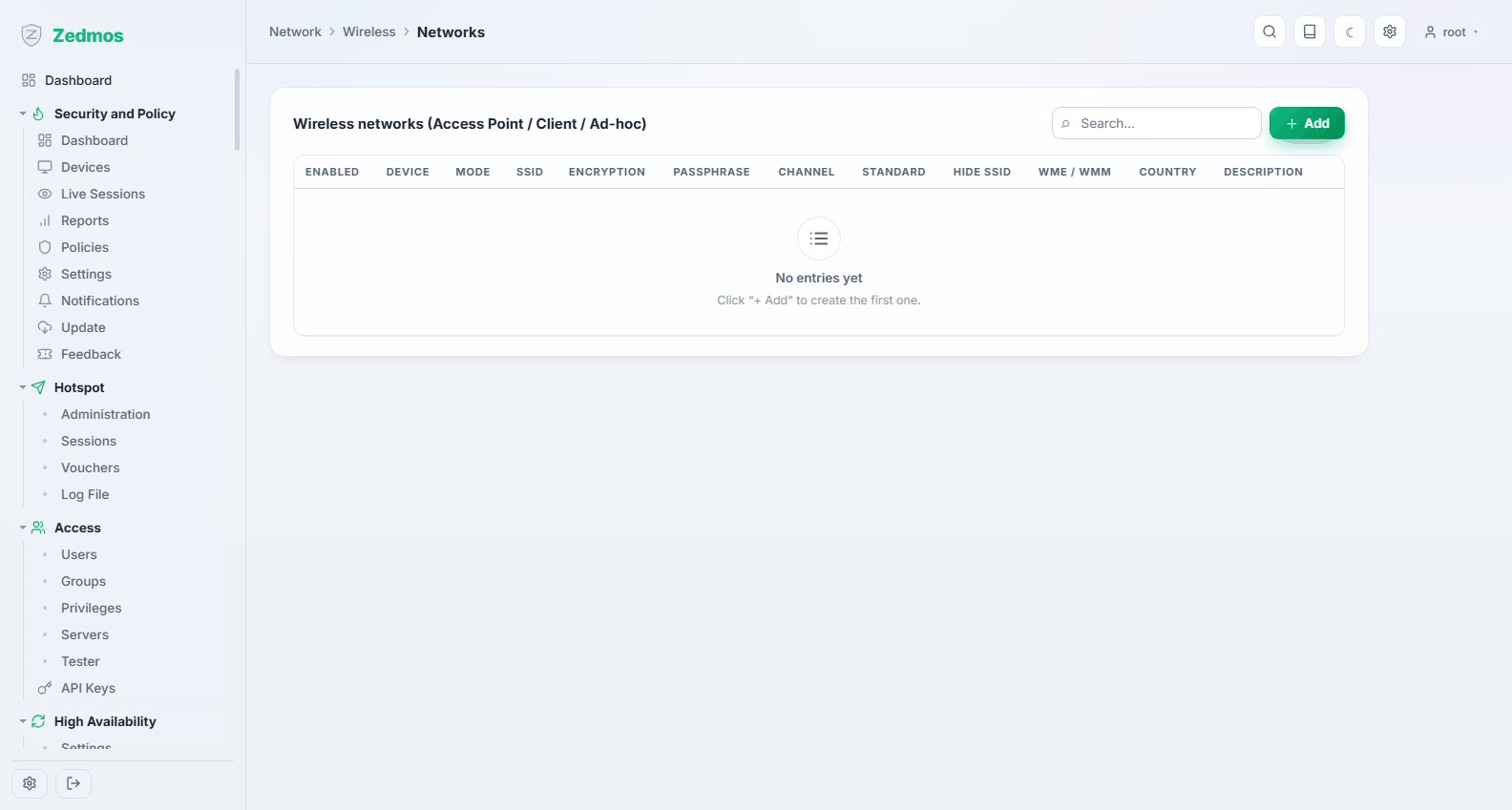
Wireless configuration for appliances with a radio: an access point (the appliance serves a network) or a client (the appliance joins one), with the SSID, the security mode and the key.
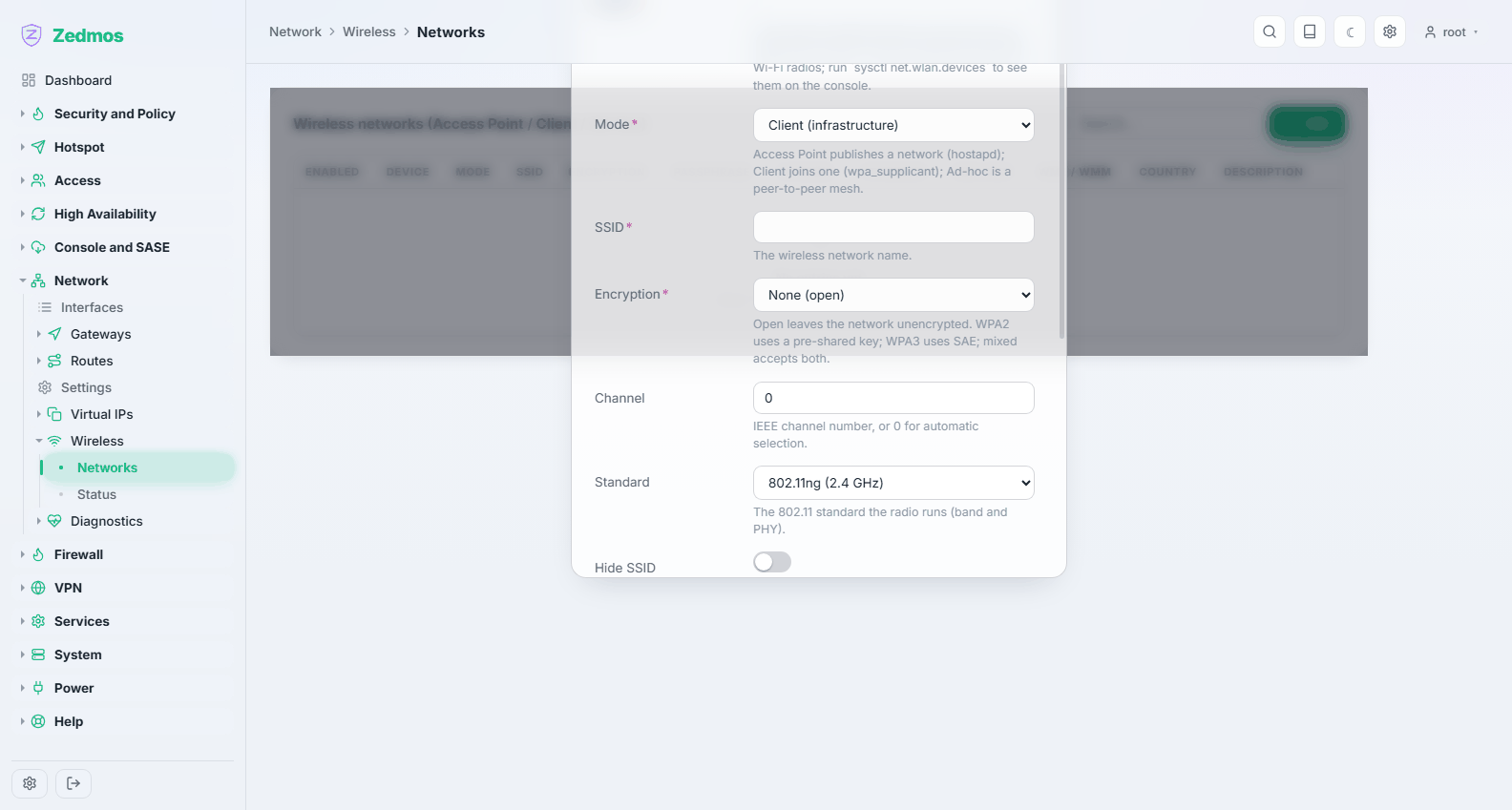
Wireless support depends on the radio and its FreeBSD driver. Access-point mode is limited to what the driver supports, which on most hardware means 802.11n or 802.11ac, not the newest standards. For a Wi-Fi network of any size, a dedicated access point behind the firewall is the better answer.
Status — /wireless-status
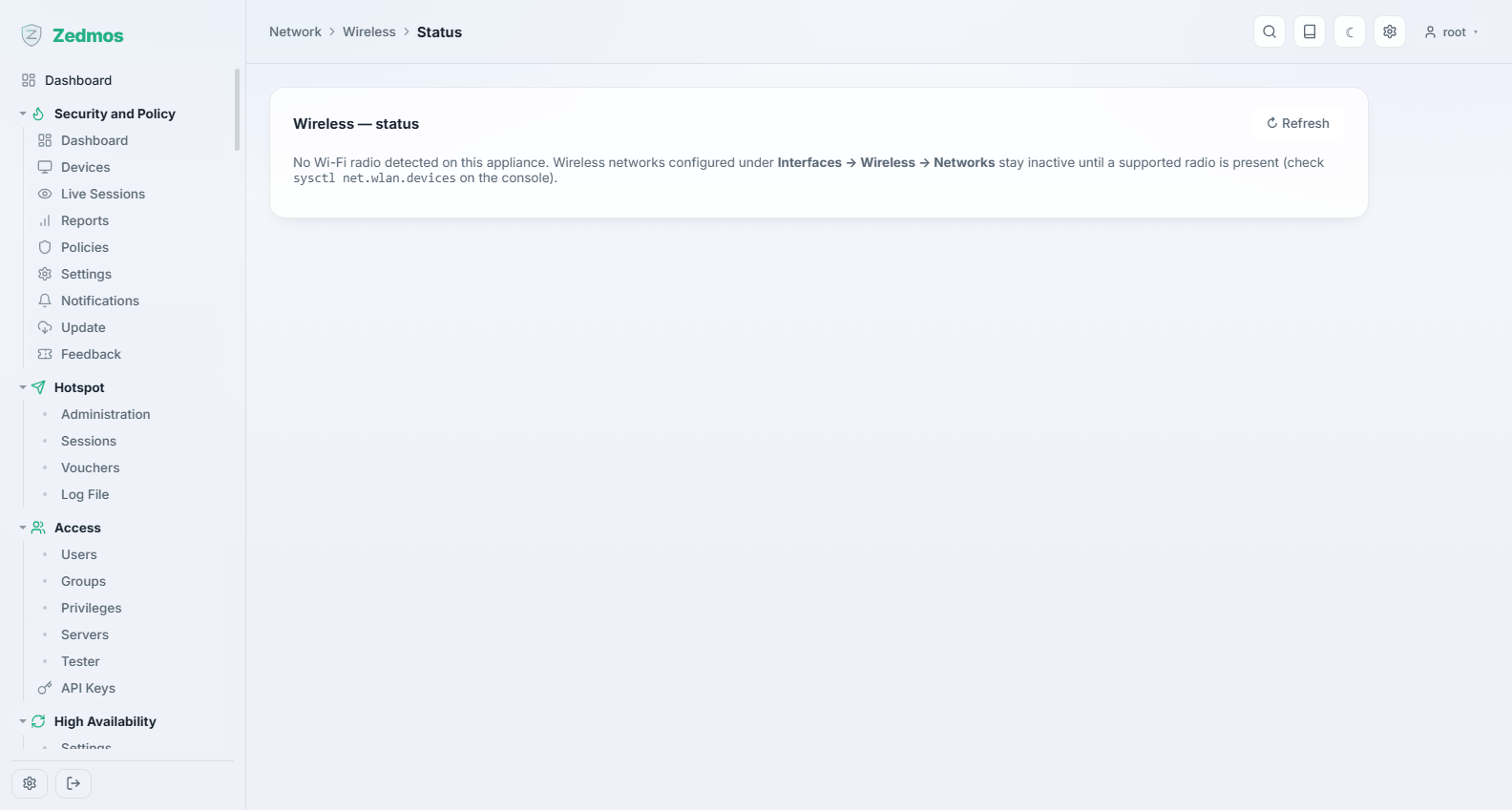
The live state of each radio: the interfaces that were actually created, the network in use, signal quality, and a scan of what else is nearby.
Diagnostics
Tools, not settings. Nothing on these pages changes the configuration.
| Page | What it answers |
|---|---|
ARP Table — /diag/arp | Which MAC address holds which IPv4 address on each segment. Two addresses claiming one MAC, or a MAC that keeps changing, is where you find a duplicate-address problem. |
NDP Table — /diag/ndp | The same for IPv6 neighbours. |
Netstat — /diag/netstat | Per-interface counters: packets, bytes, errors, collisions. Rising errors point at a cable, a port or a duplex mismatch. |
Ping — /nettools#ping | Reachability from the appliance itself, with a choice of source interface — which is how you test what a client on that segment would see. |
Trace Route — /nettools#traceroute | Where packets stop on the way out. |
DNS Lookup — /nettools#dnslookup | What the appliance's resolver answers for a name — distinguishing "DNS is broken" from "the site is down". |
Port Probe — /nettools#portprobe | Whether a TCP port is open from here. The quick test after a port forward. |
Packet Capture — /pcap | A real capture on a chosen interface with a filter, downloadable as a .pcap for Wireshark. The last resort, and the one that always tells the truth. |
Captures fill the disk. Bound them with a filter and a packet count, and delete them when you are done.