5.9 System
The appliance itself: its identity, how you reach it, its certificates, its software, its backups and its logs.
Settings
General — /system-general
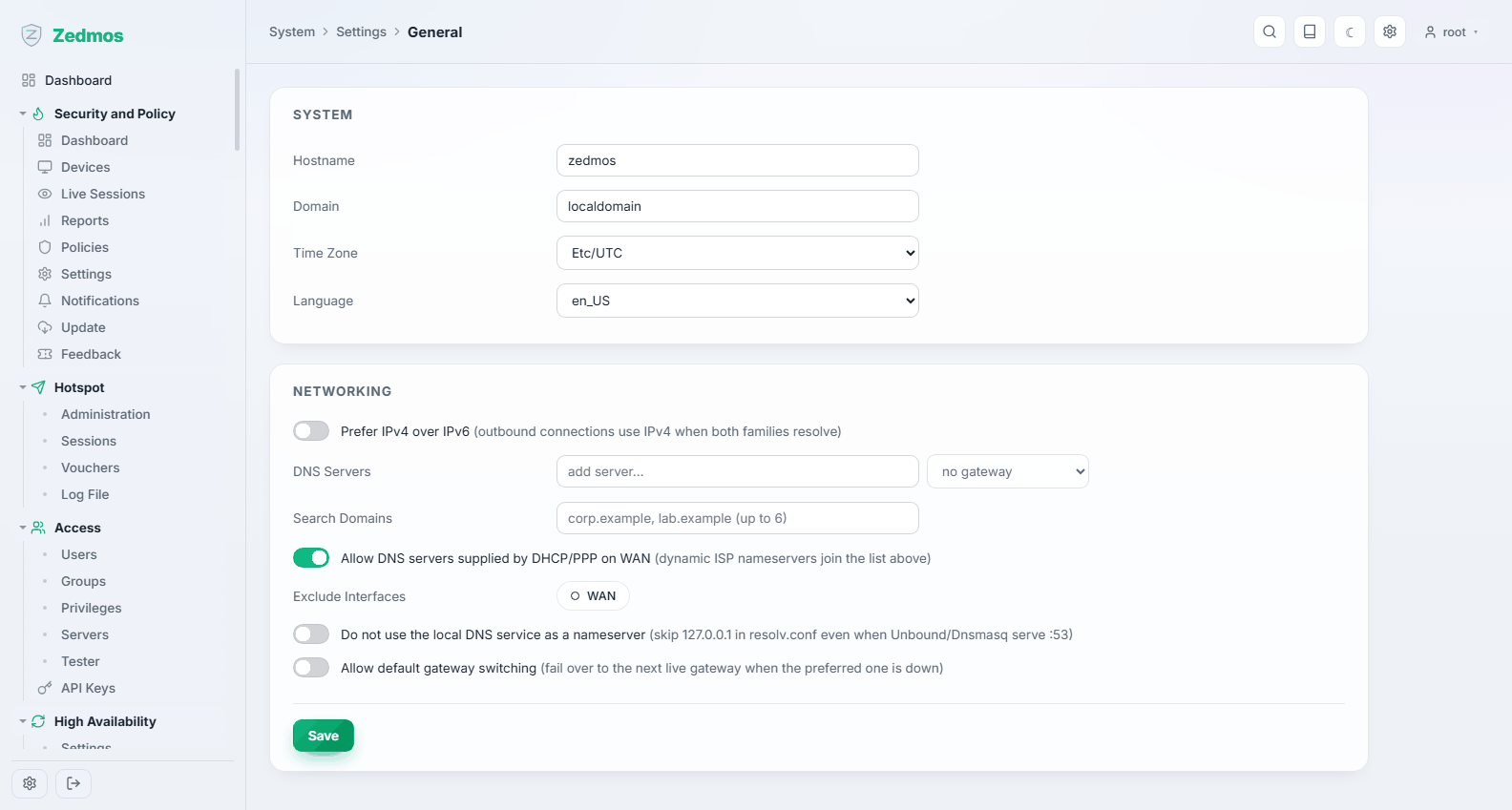
Hostname and domain, the DNS servers the appliance itself uses, the time zone, and the panel's language. The hostname is what appears in logs, certificates and the console banner — give the box a name that means something in three months.
Administration — /system-admin
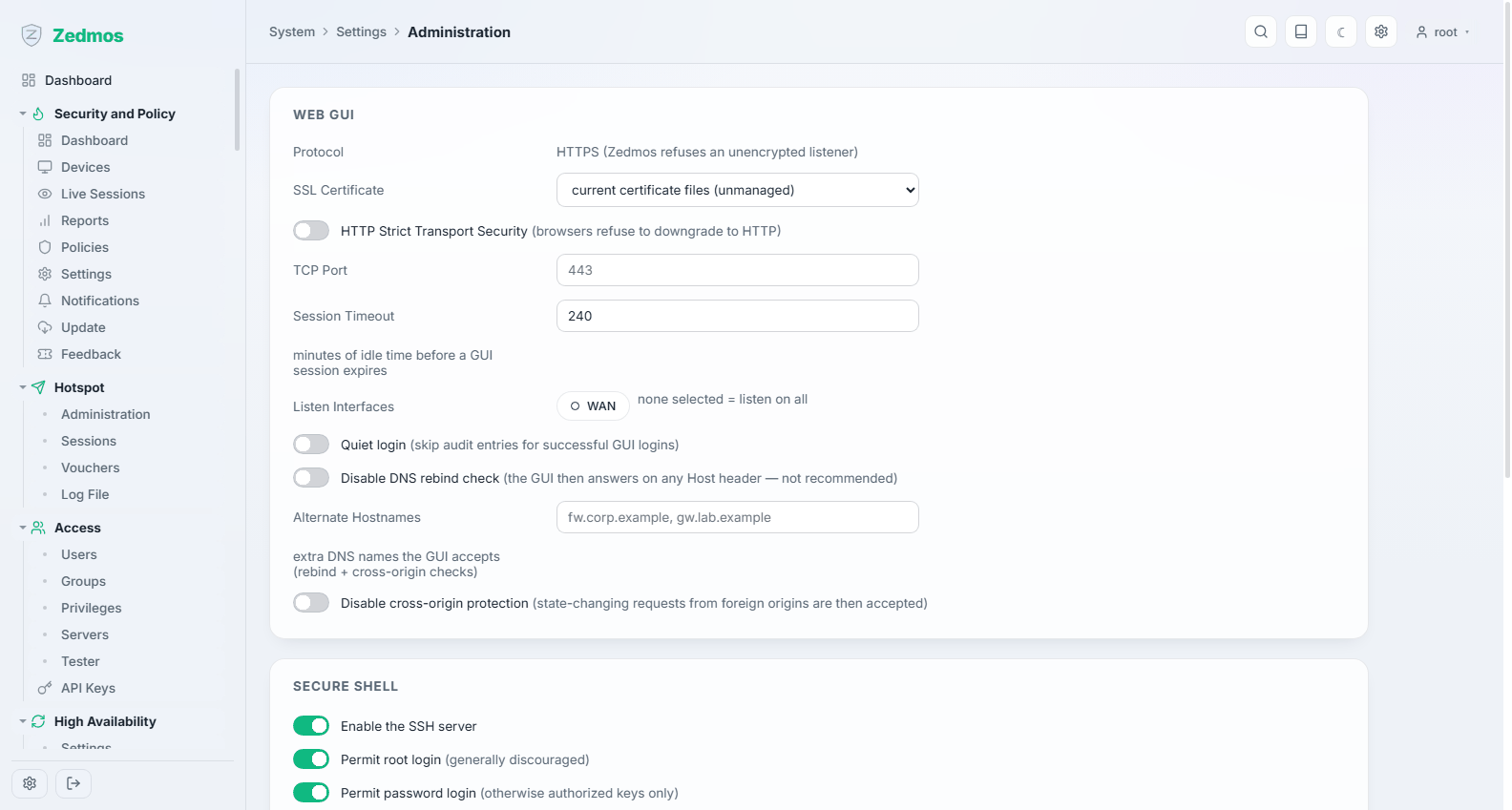
How administrators reach the appliance.
Web GUI: the port it listens on, the certificate it presents (pick one from Trust once you have a proper one), whether plain HTTP redirects to HTTPS, and which interfaces the panel answers on.
SSH: whether the SSH service runs, its port, whether root may log in, and whether passwords are accepted at all.
A new appliance answers SSH with root login and password authentication enabled. If you do not use SSH, turn it off here. If you do, the combination worth having is: SSH on, password authentication off, and a public key on each administrator's account — then a stolen password is not enough to reach the box.
Changing the panel's port or its interfaces takes effect immediately and will drop your session. Know the new address before you press Save.
Cron — /m/cron/cron
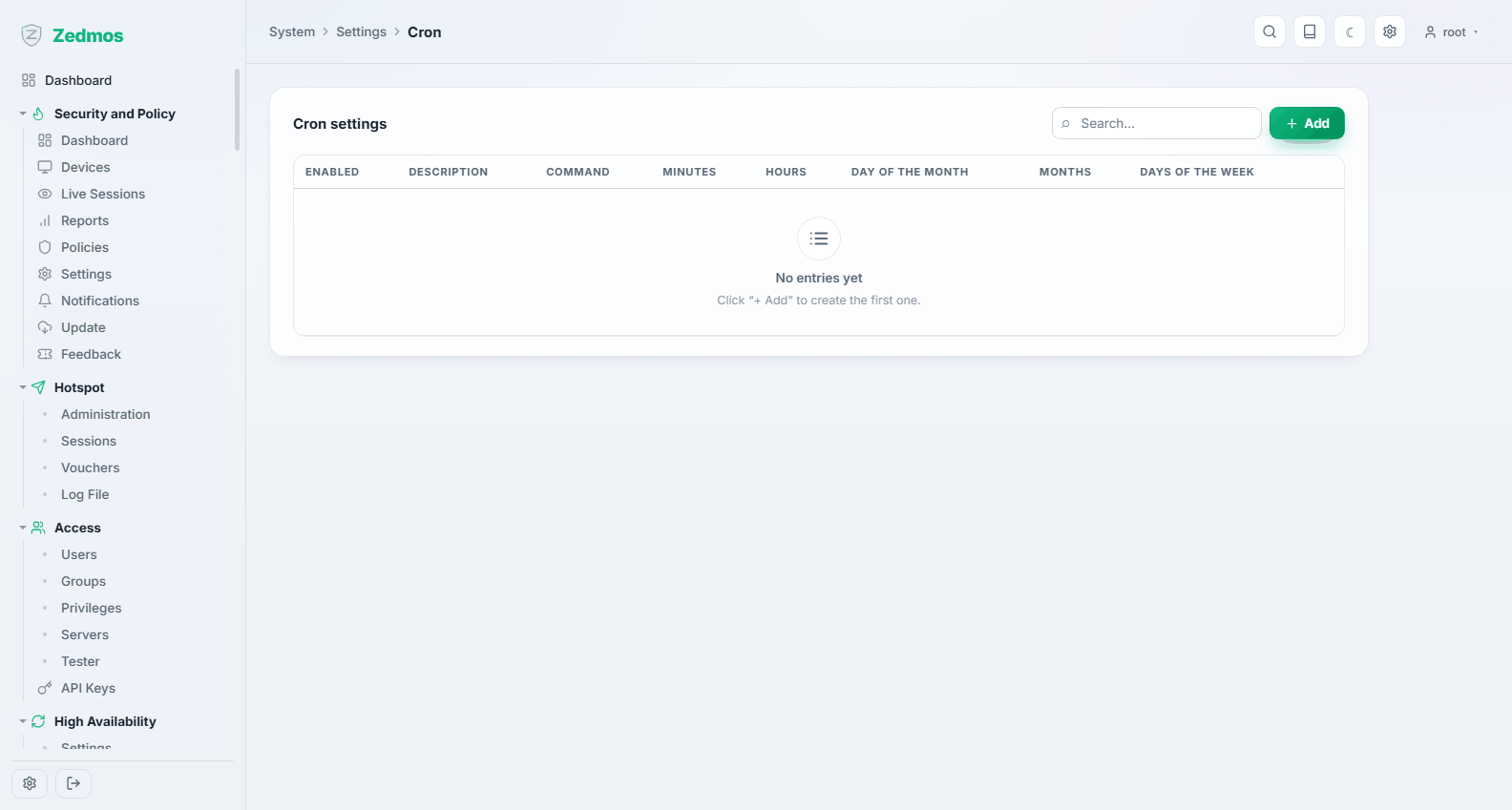
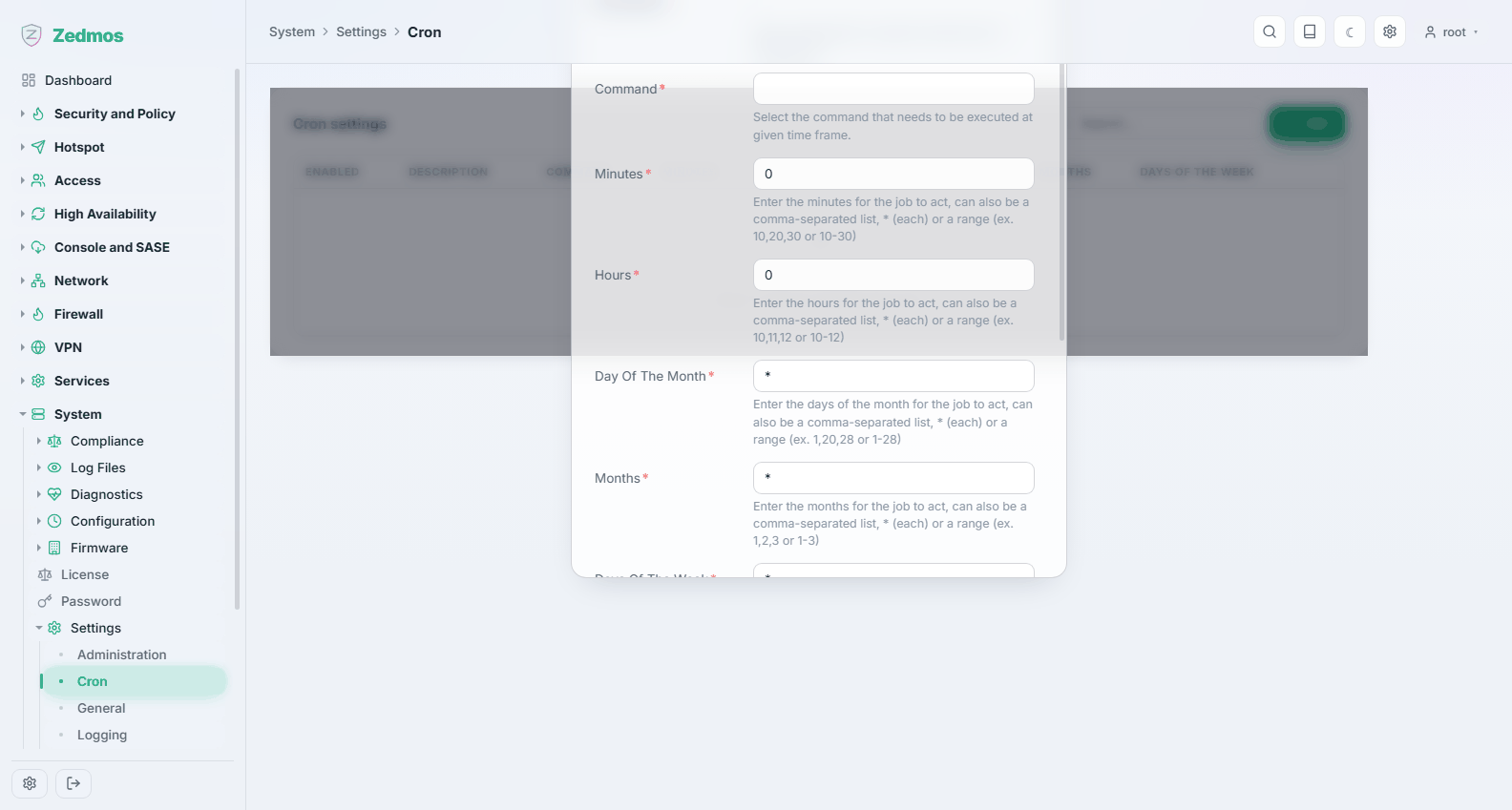
Scheduled jobs the appliance runs for itself — backups, updates of lists, maintenance. Add your own with a schedule and the action to run.
Logging — /m/syslog/syslog
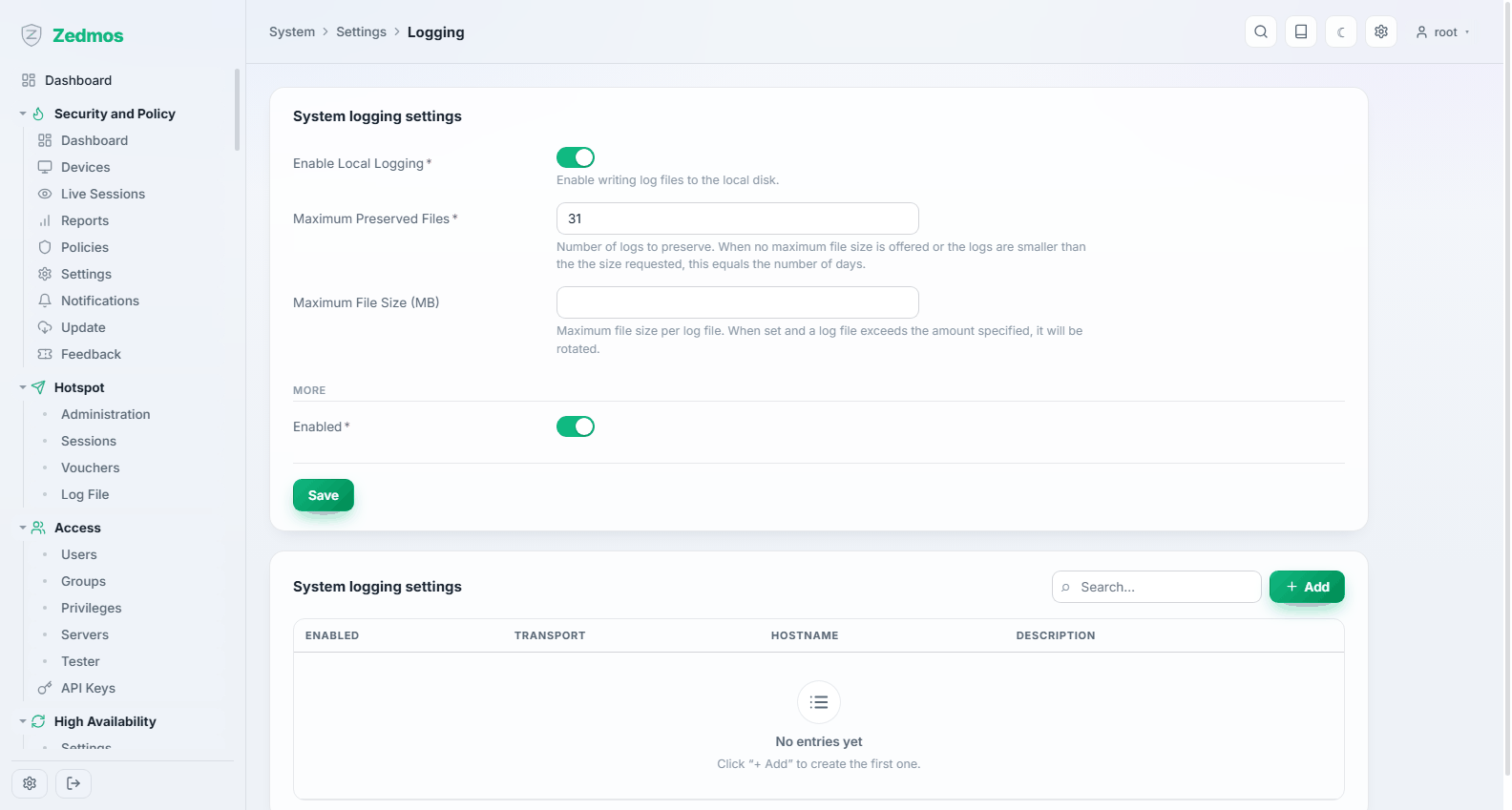
How much is logged, how long it is kept, and where else it goes: remote syslog targets, with the transport and the facilities to forward.
Send logs off the box. An appliance that is compromised or dies takes its local logs with it; a remote collector is the copy that survives — and on a small disk, remote logging is what lets you keep local retention short.
Miscellaneous — /system-misc
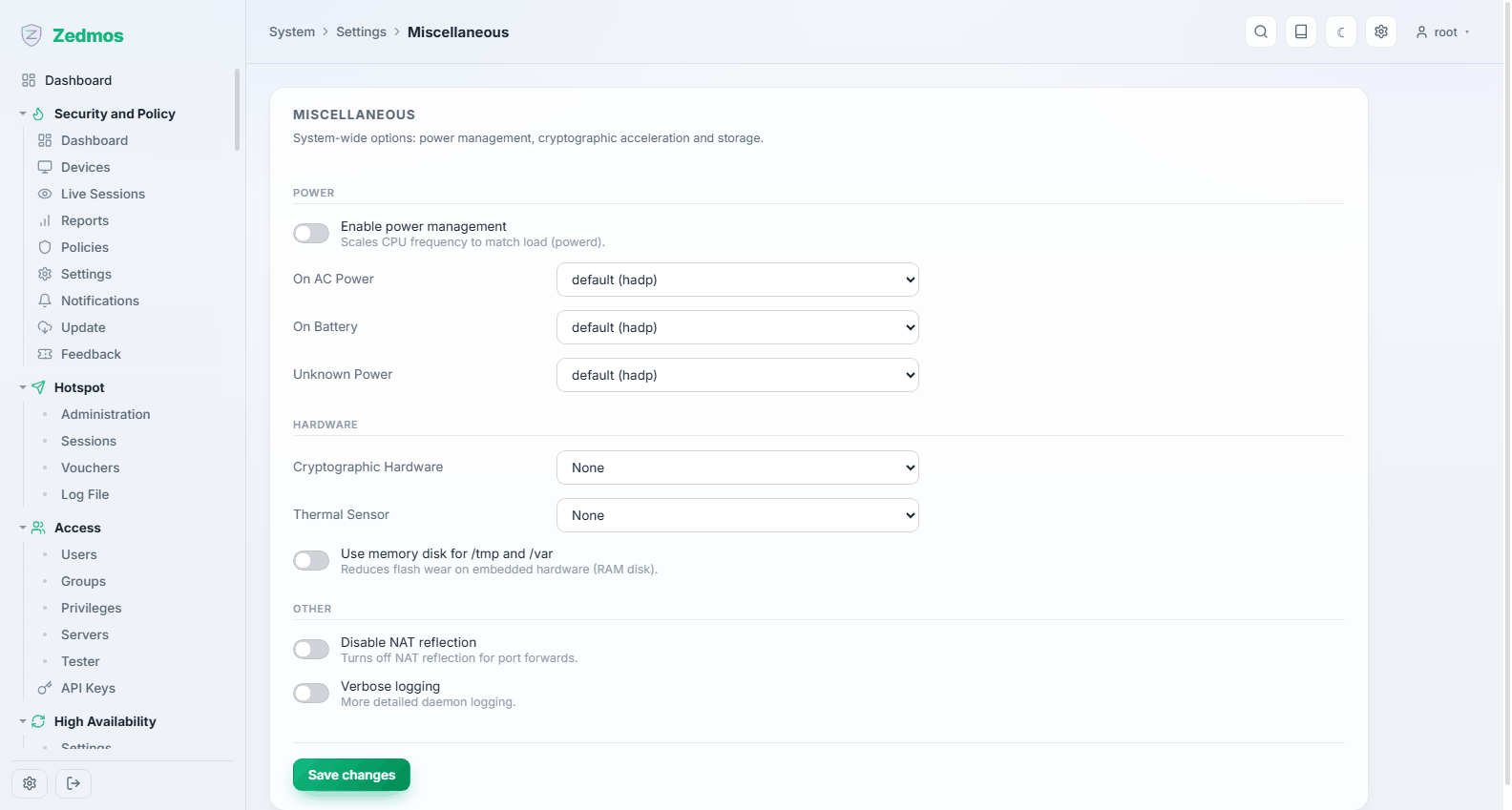
Cryptographic hardware acceleration, thermal sensors, power management and other settings that fit nowhere else.
Tunables — /m/core/sysctl
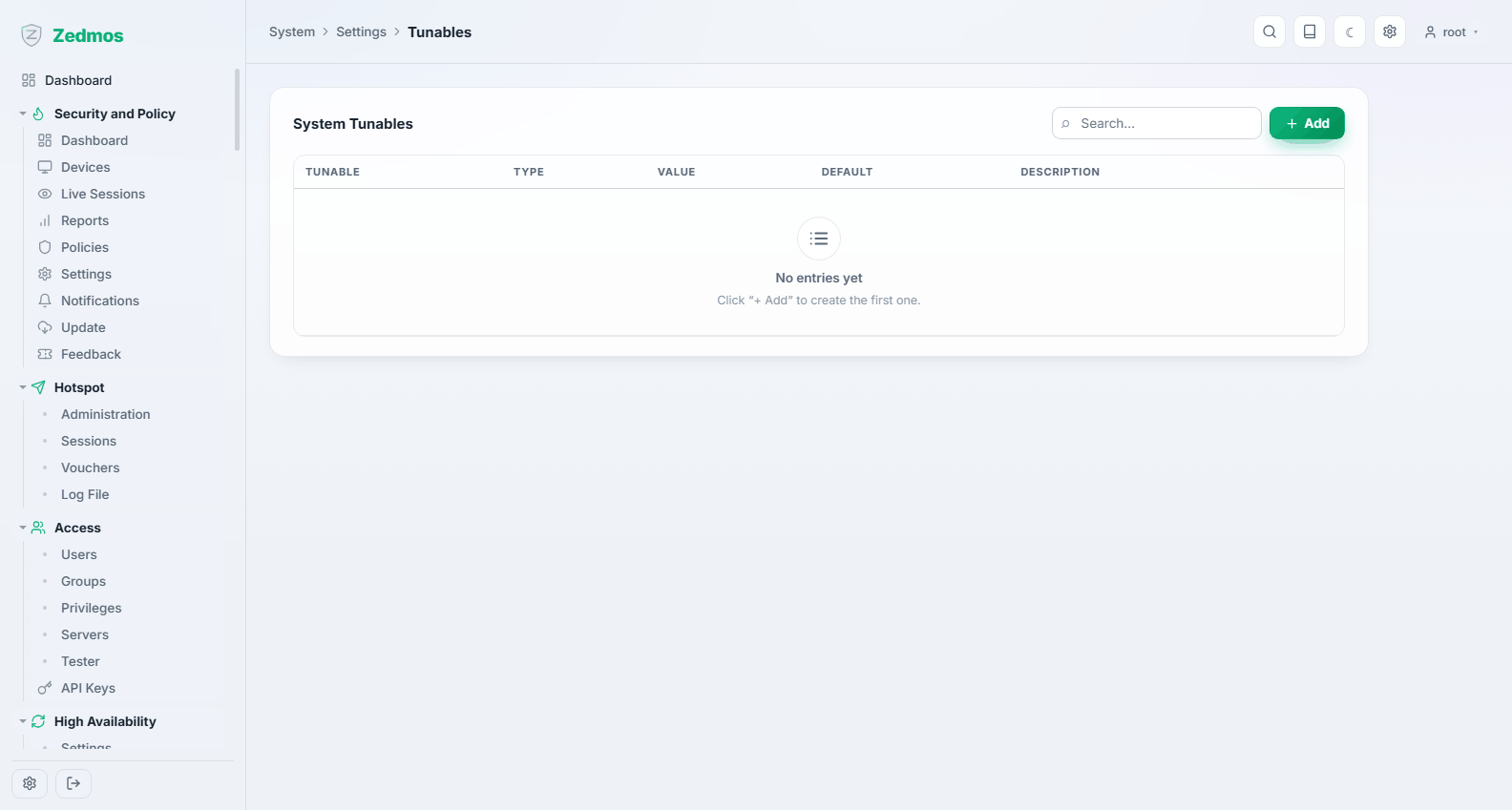
Kernel parameters, by name and value. The appliance sets the ones it needs; add one here only with a reason you could defend later, and note it — an unexplained tunable outlives the person who added it.
Trust
The appliance's certificate store. Everything that needs a certificate — the panel itself, OpenVPN, IPsec, the captive portal, TLS inspection — takes it from here.
Authorities — /m/trust/ca
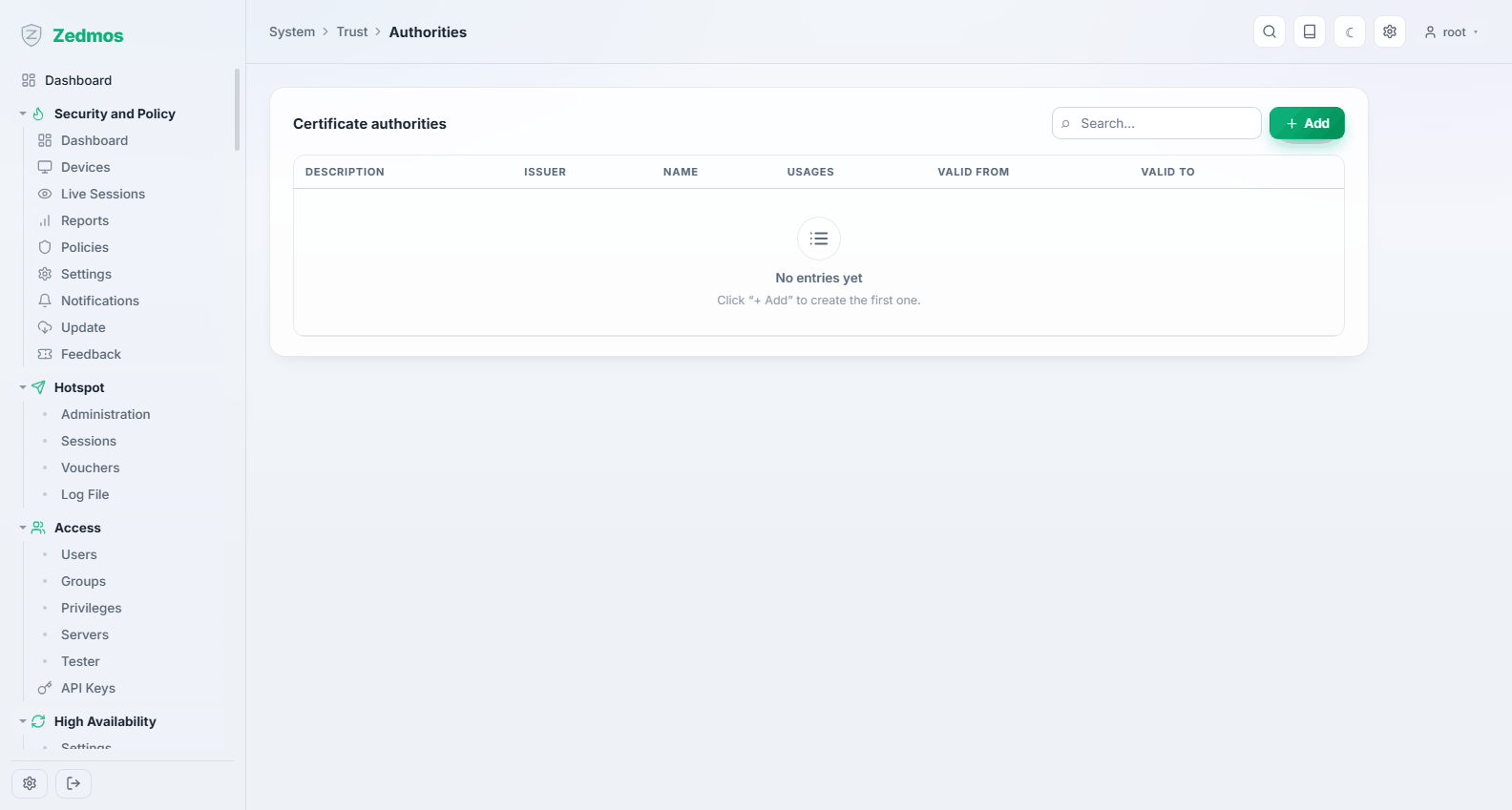
Certificate authorities: ones you create on the appliance, and ones you import because something else issued them.
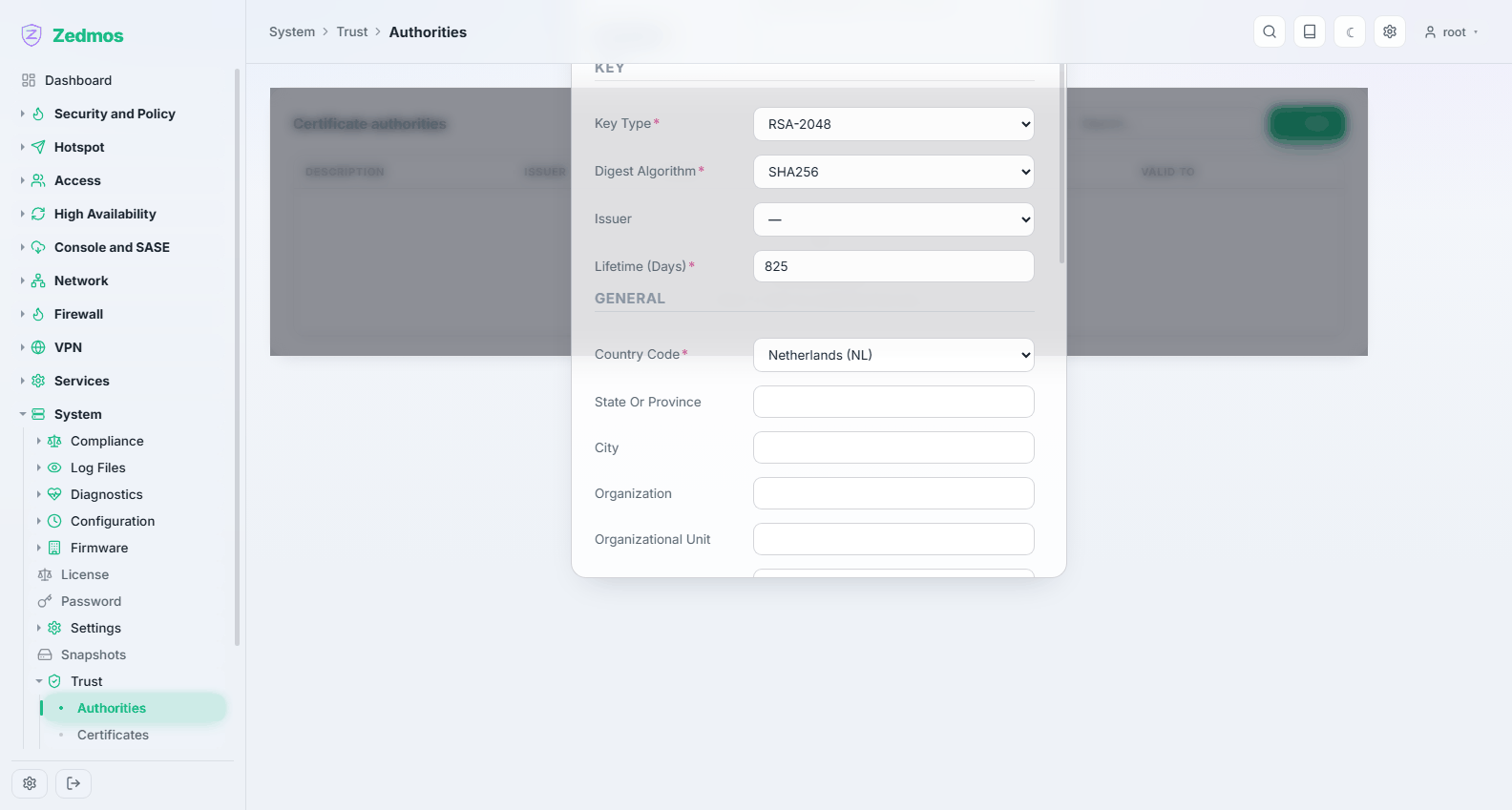
A CA created here can sign certificates for VPN users, internal services and TLS inspection. Give it a long life and a name that says what it is for; you will be distributing it to clients.
Certificates — /m/trust/cert
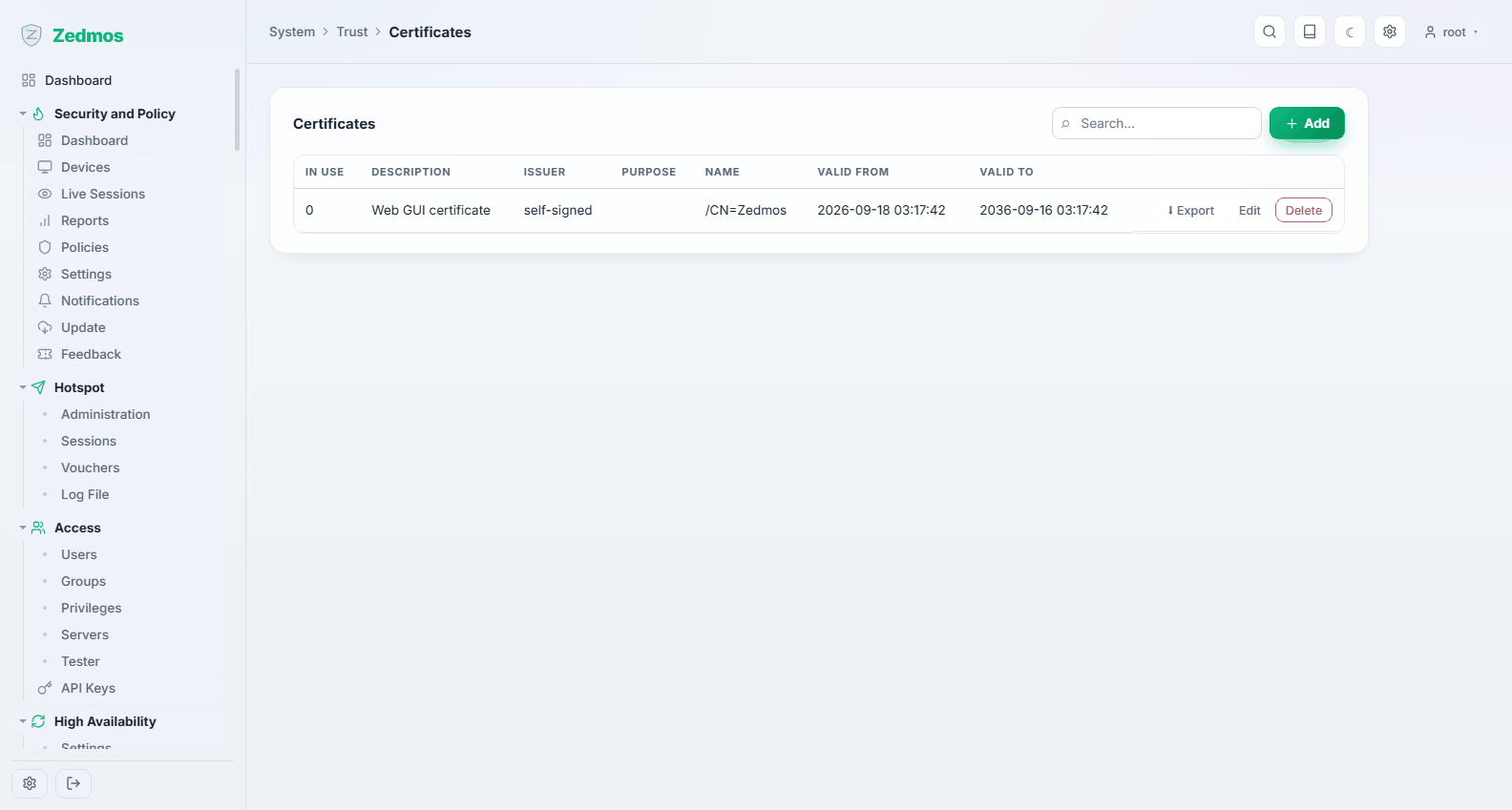
The certificates themselves — server certificates, client certificates, certificate signing requests — with their issuer, their subject and how long they have left.
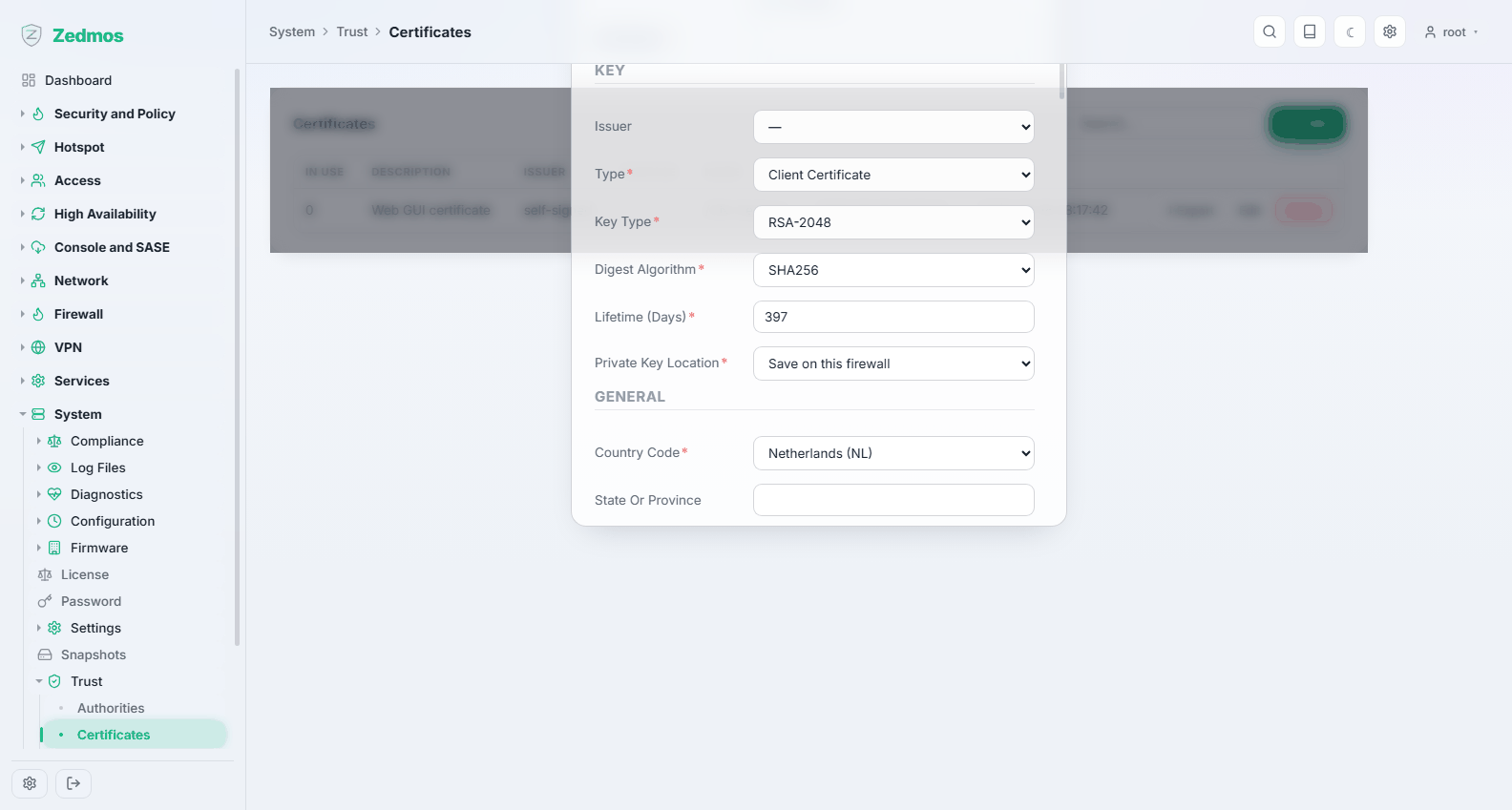
Each row can be exported: the certificate alone, with its private key, as a signing request, or as a PKCS#12 bundle for a client that wants one file. Details shows the certificate in full, which is how you check a subject alternative name without leaving the page.
The web panel's own certificate appears here too, so the Certificates widget on the dashboard can warn you before it expires.
Revocation — /crl
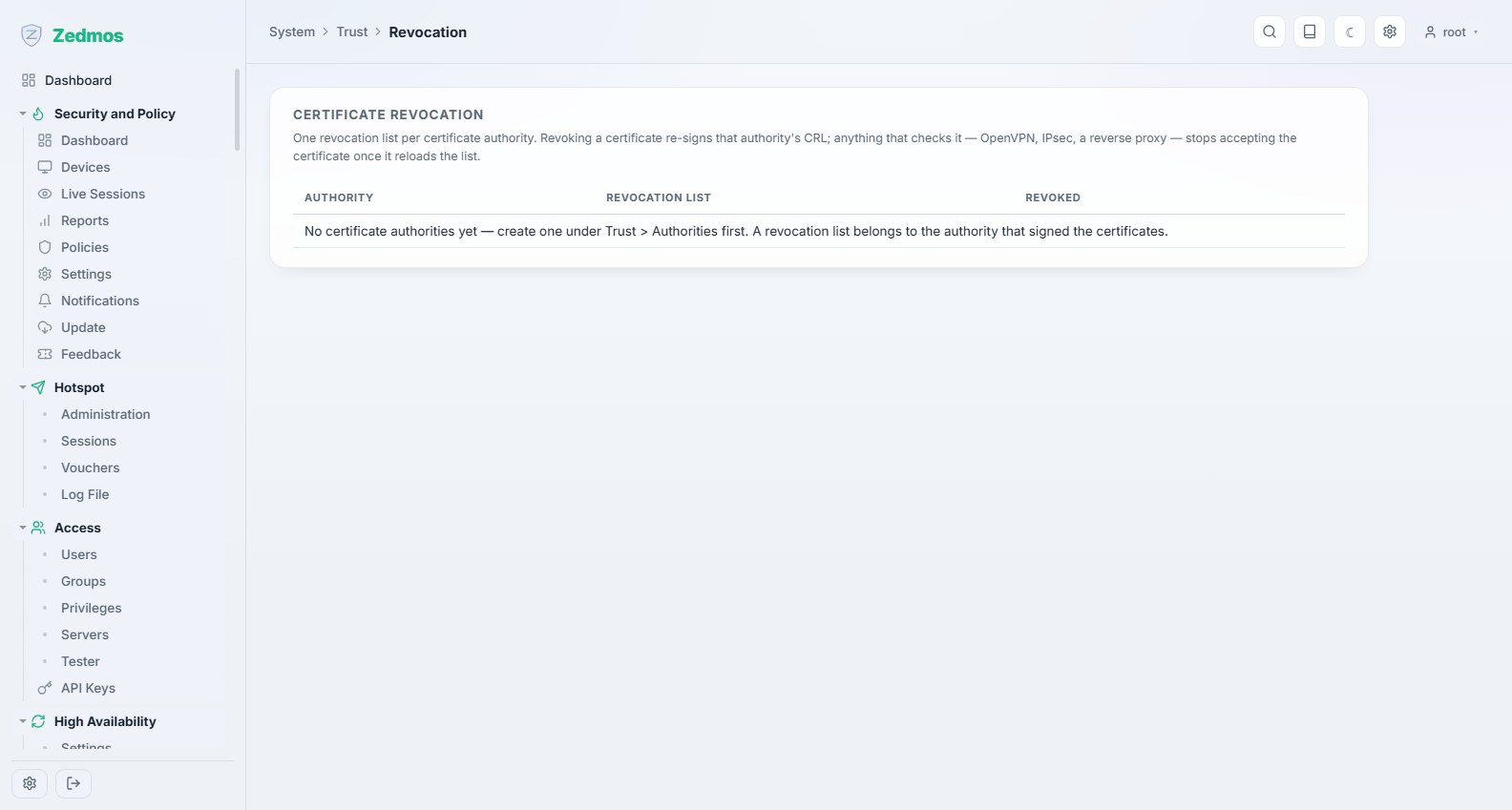
Certificate revocation lists, one per authority. Revoking a certificate here — with a reason — takes effect for everything that checks the list, which is how you retire a lost laptop's VPN access without changing anything else.
Settings — /m/trust/general
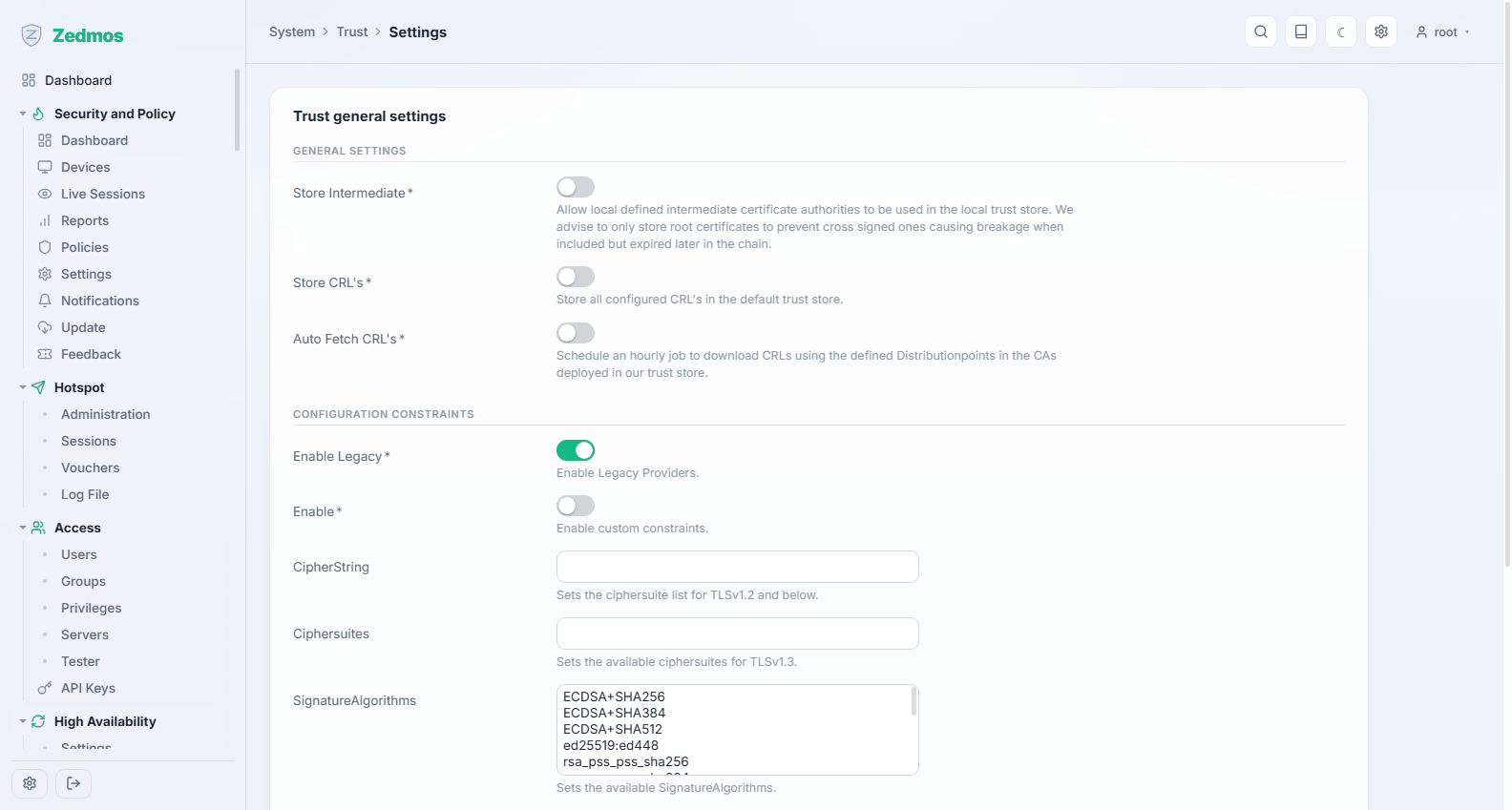
Store-wide behaviour: which authorities the appliance itself trusts when it makes outbound connections, and whether the system trust store is rebuilt from them.
Firmware — /plugins
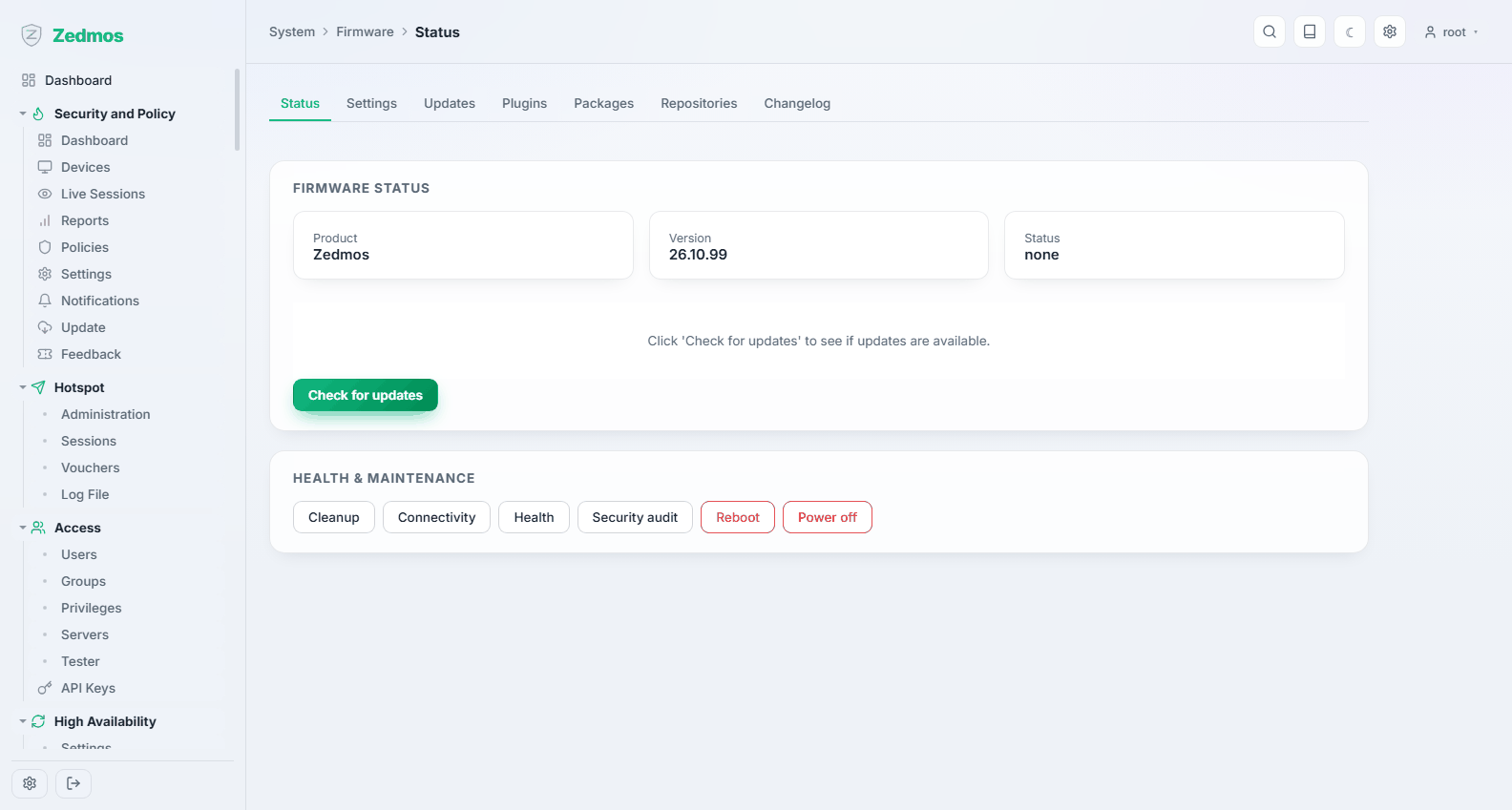
Status — #status
Which version is installed and whether an update is waiting. Check for updates asks the repository; if an update exists, it is applied from here and the appliance restarts its own control plane when it is done.
Read Maintenance → Updating before the first update on a production box: take a configuration backup, and on a high-availability pair update the backup node first.
Updates — #updates
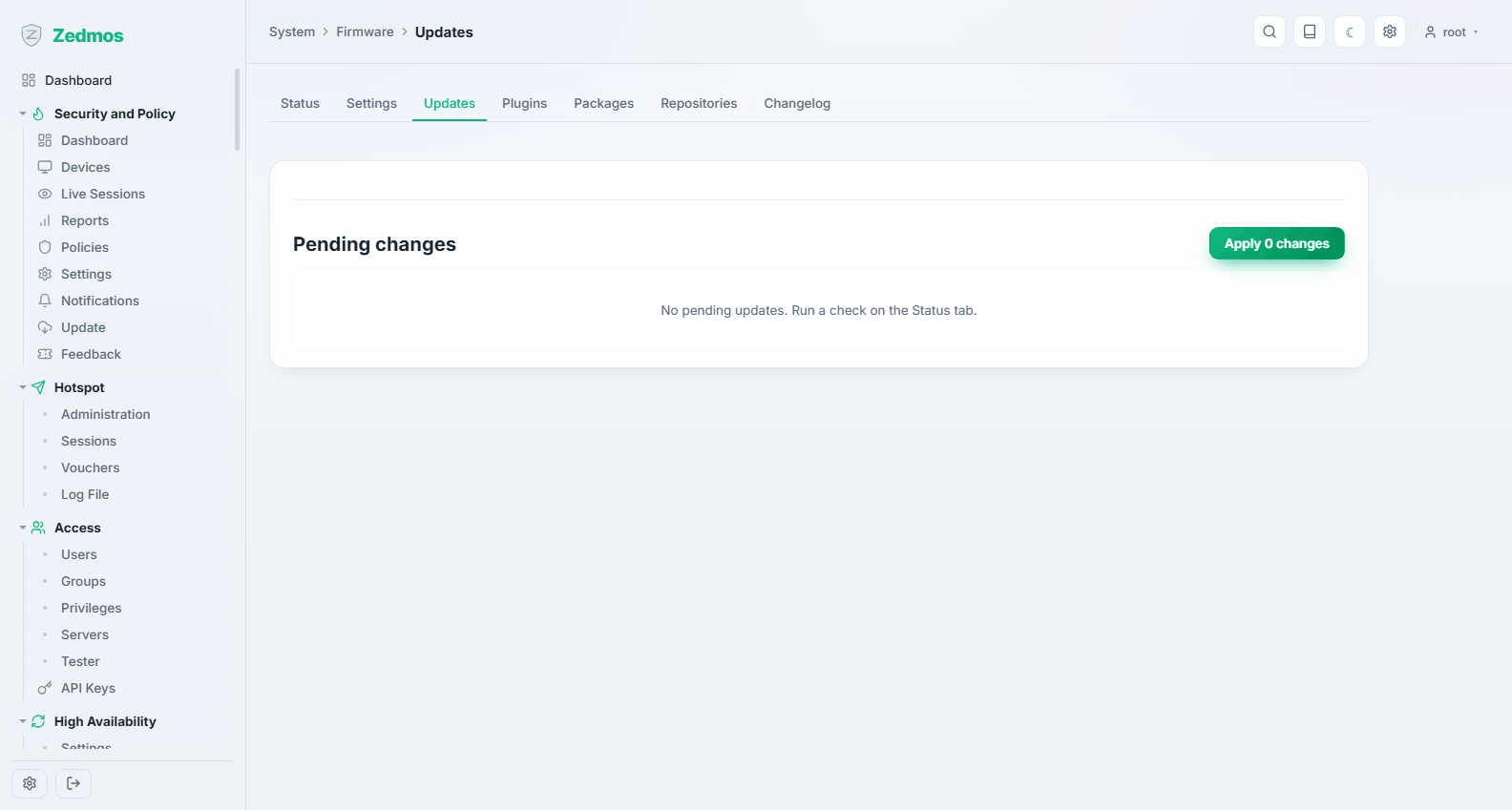
What an update would change, before you run it.
Changelog — #changelog
What changed in each released version.
Plugins — #plugins
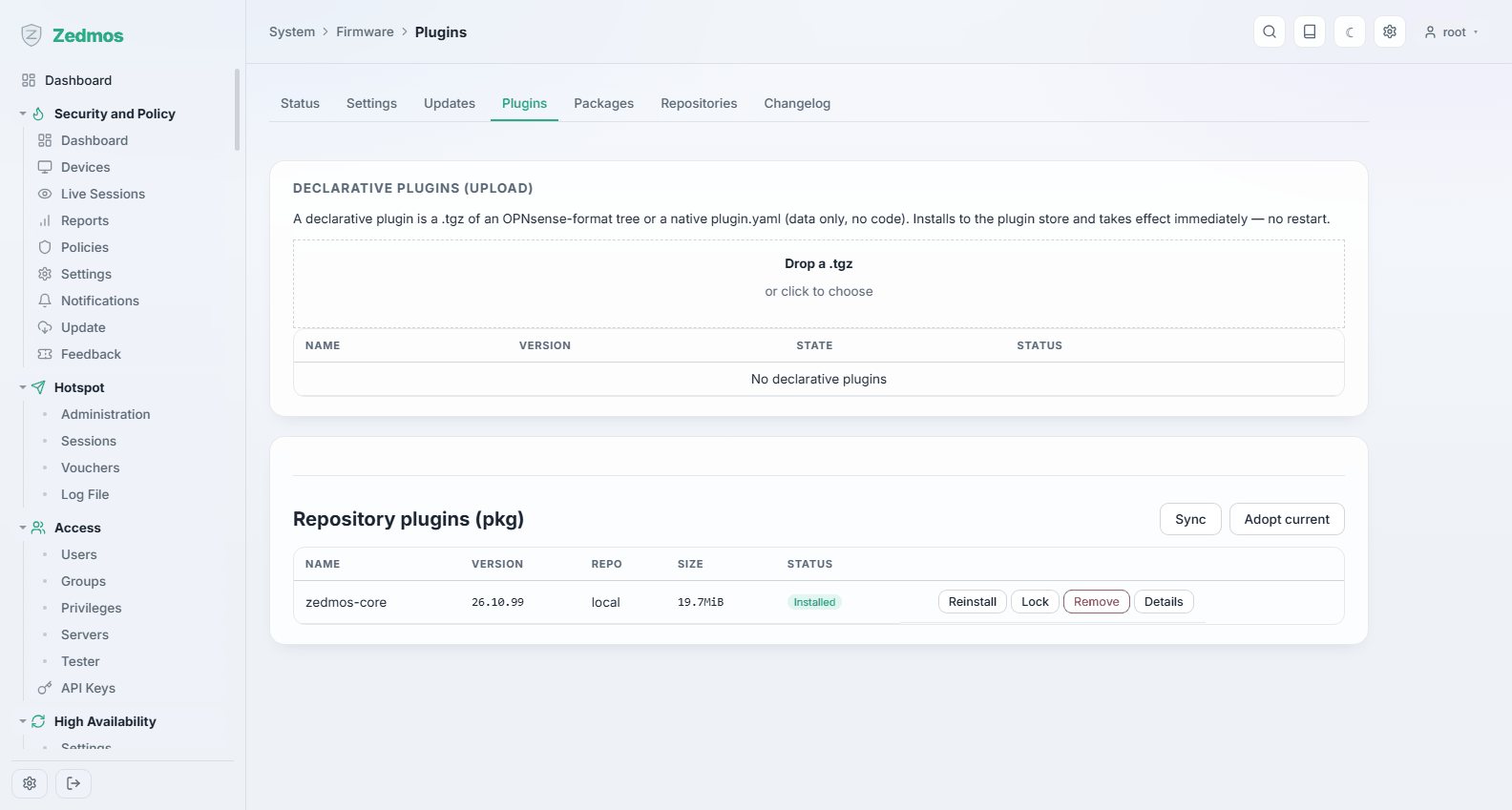
Declarative plugins installed on the appliance, and a place to upload one.
Packages — #packages
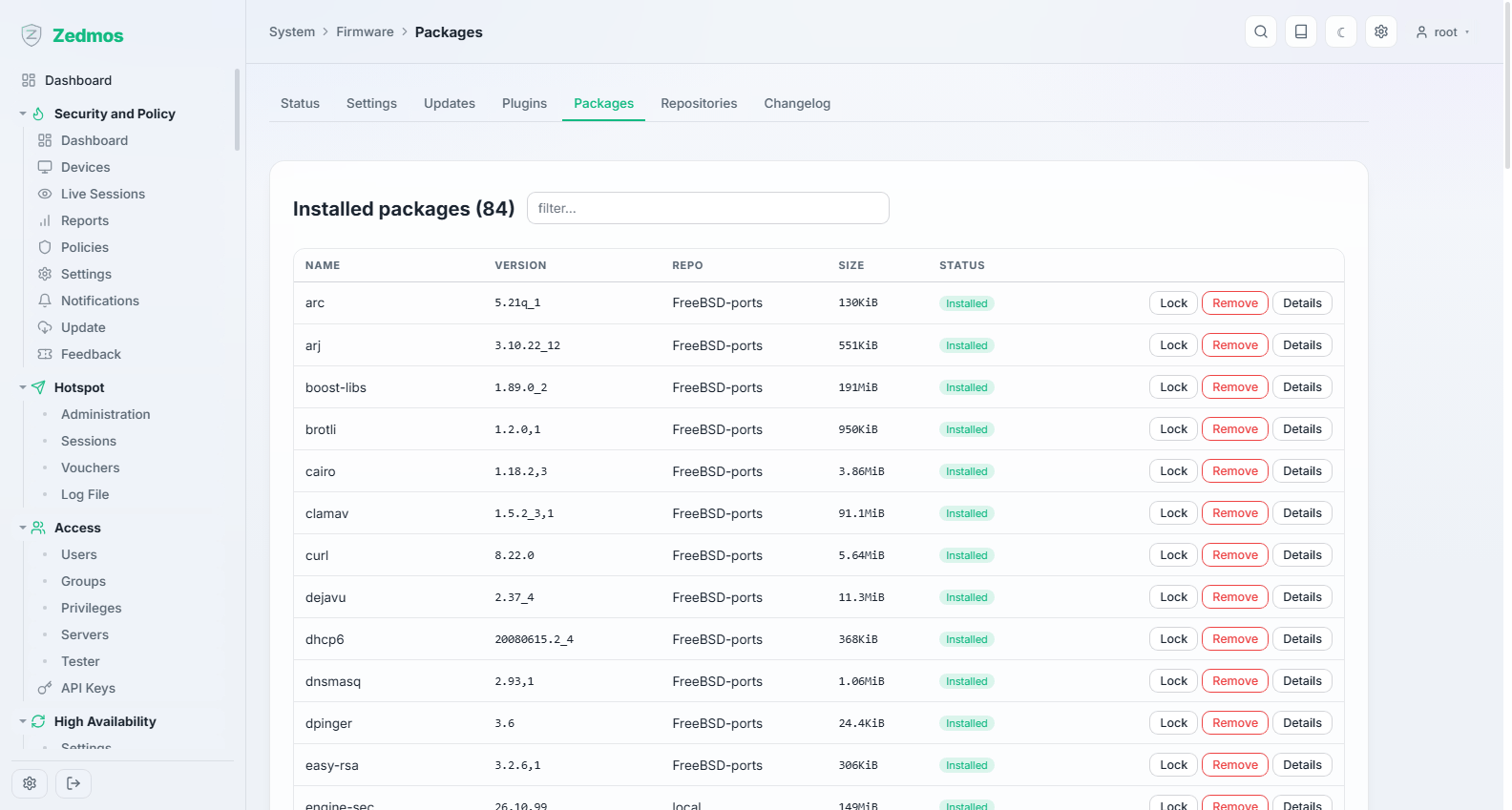
Every software package on the box with its version — what you read out when support asks what you are running.
Repositories — #repositories
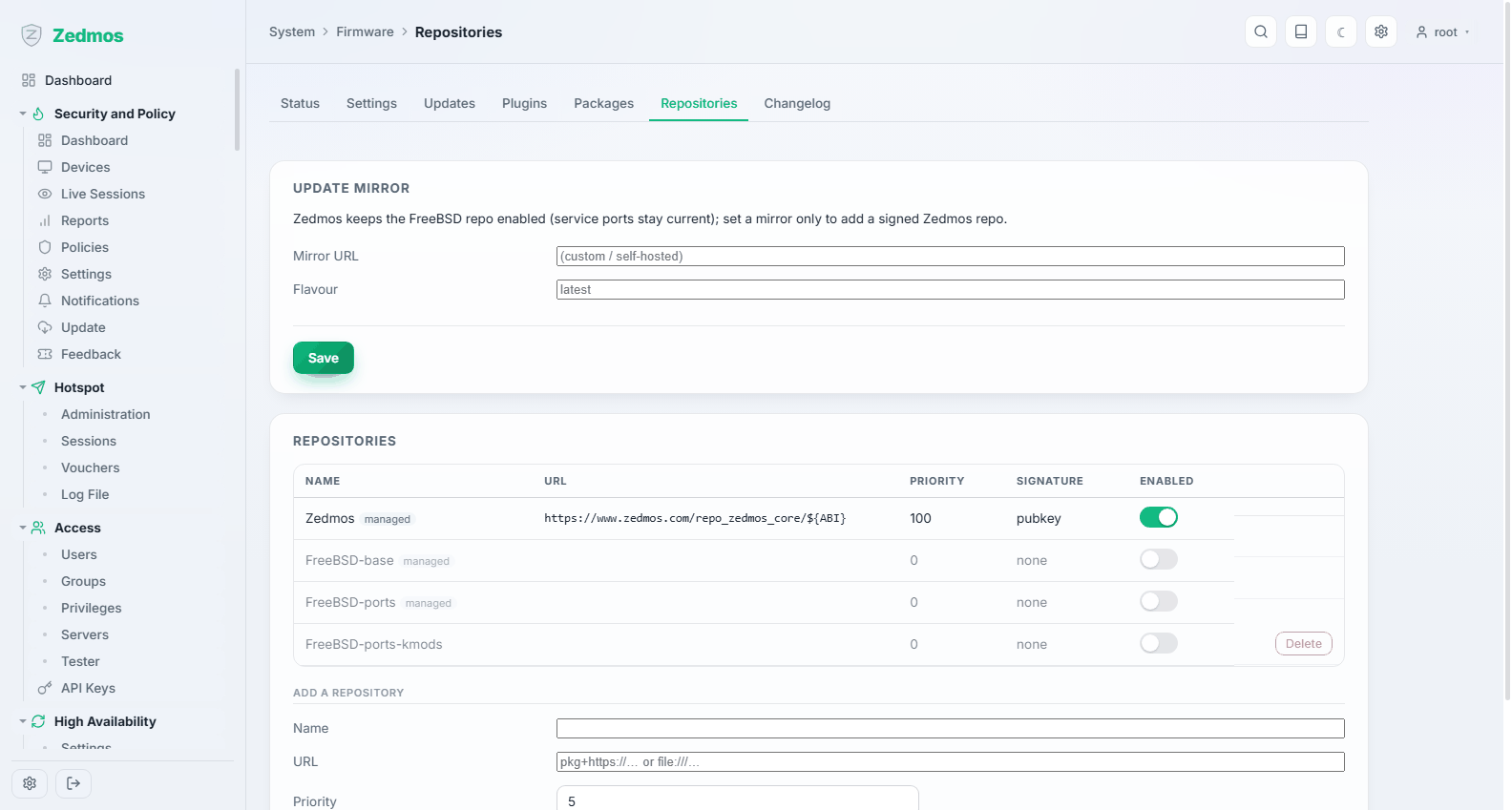
Where updates come from. The appliance ships pointed at its vendor's signed repository and verifies the signature; a catalogue that fails verification is refused rather than installed.
Settings — #settings
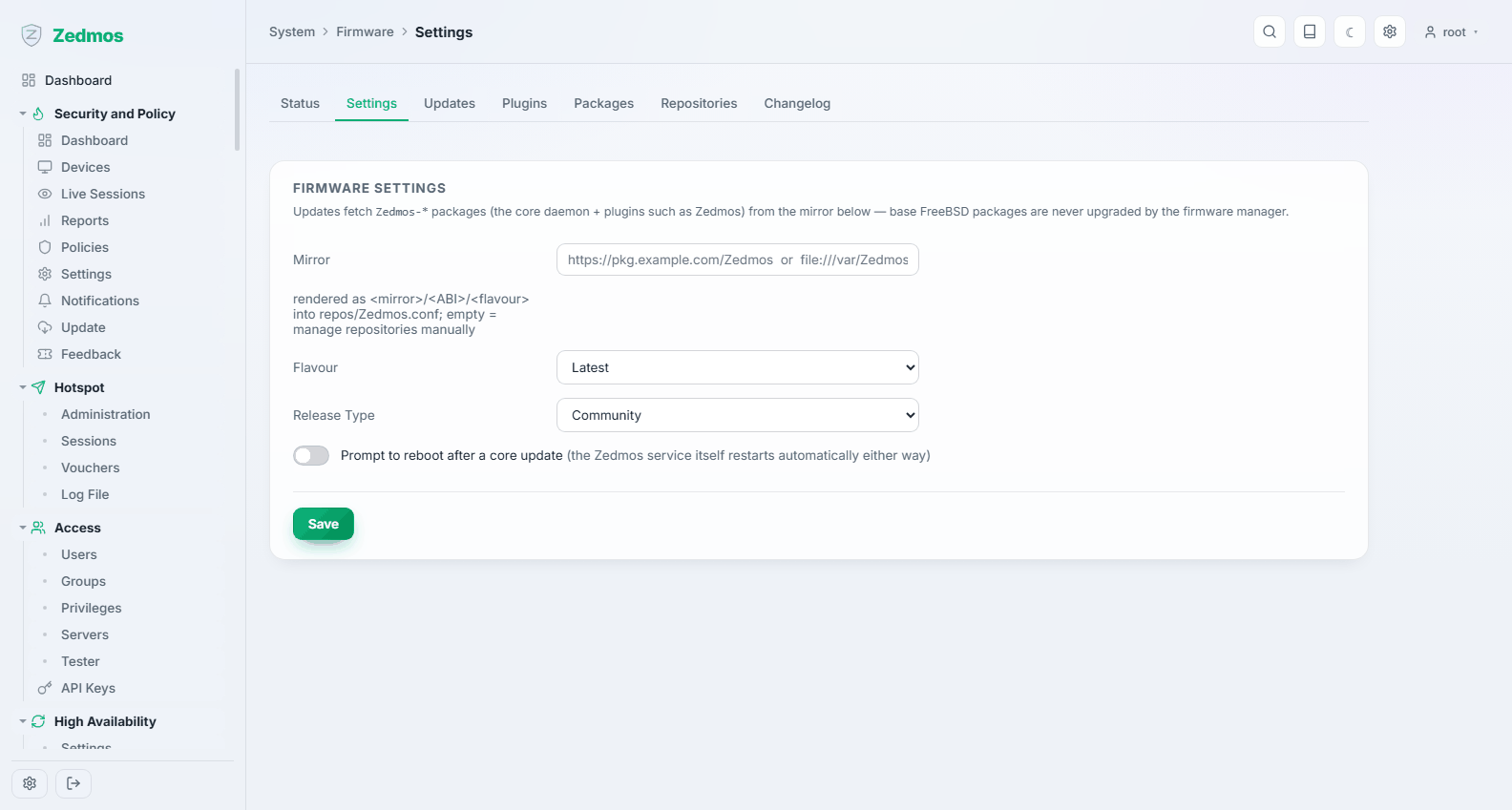
Update behaviour: the mirror to use and how checks are made.
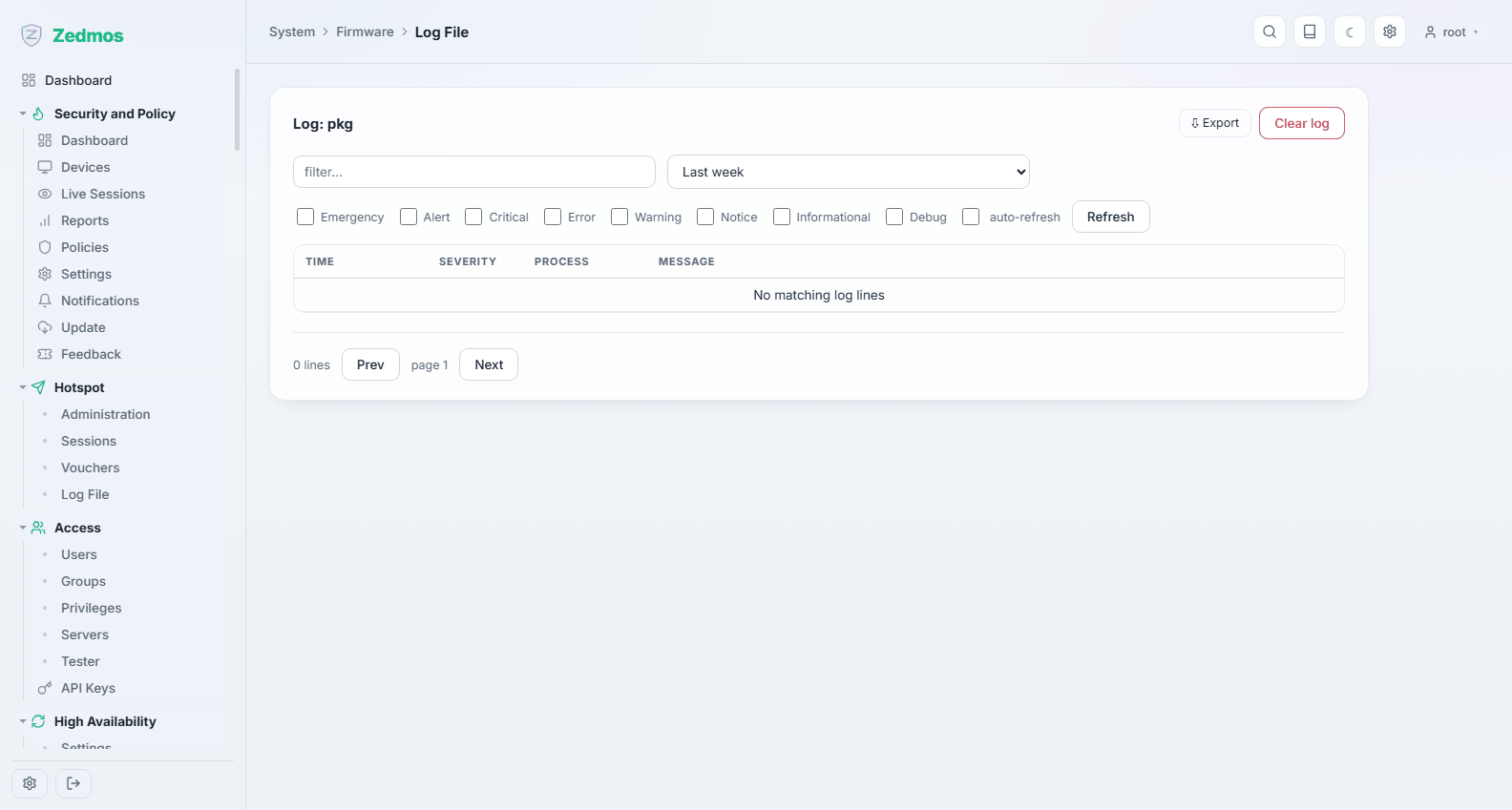
Log File — /log/core/pkg
Configuration
Backups — /tools
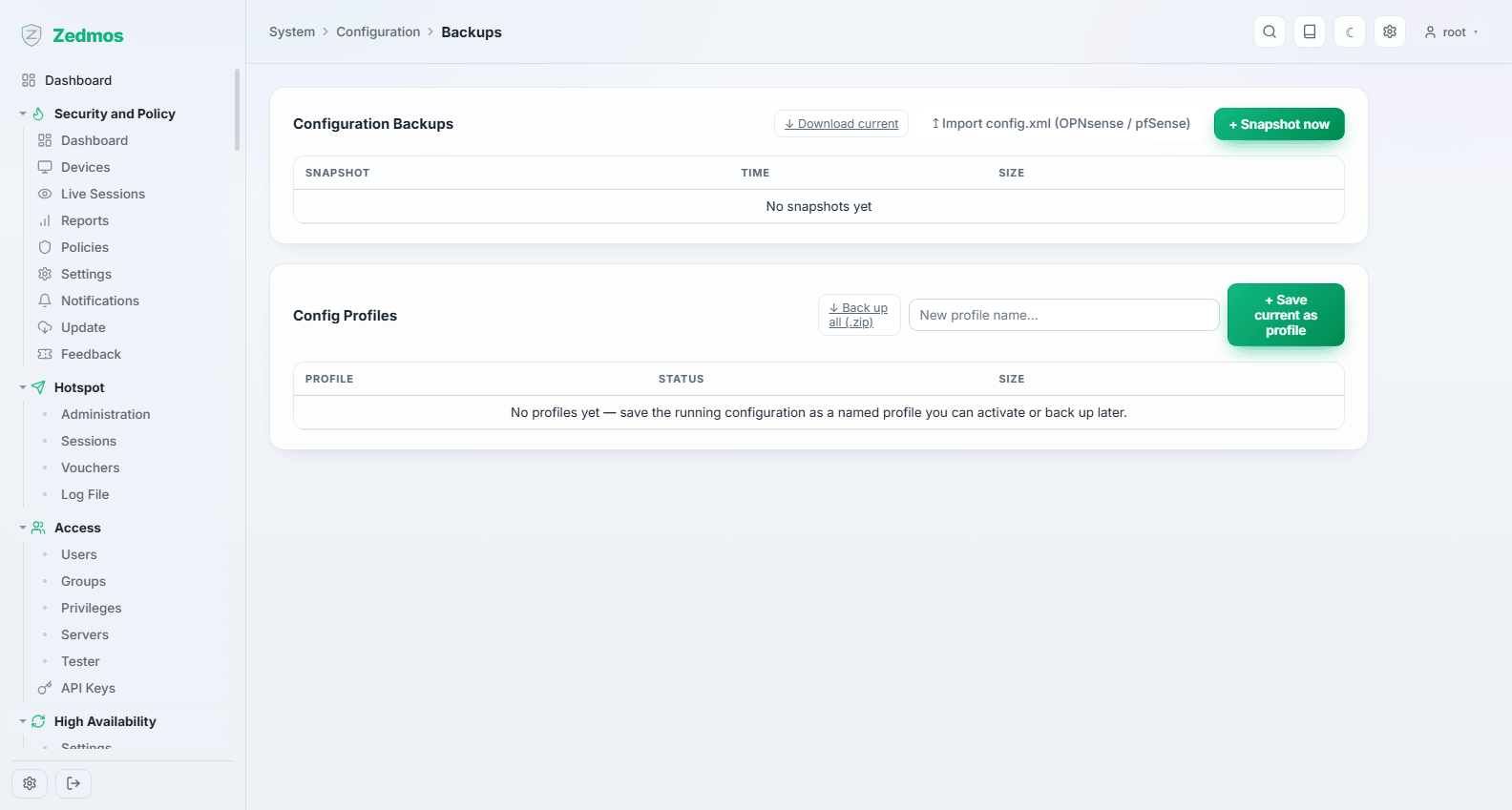
Download the whole configuration as one file, and restore one. The download is the appliance's entire state — every rule, key, certificate and password hash — so treat the file as the secret it is.
Take a backup before every change you would not want to redo, and keep one off the appliance. A configuration file restores onto replacement hardware in minutes; reconstructing it from memory takes days.
History — /tools
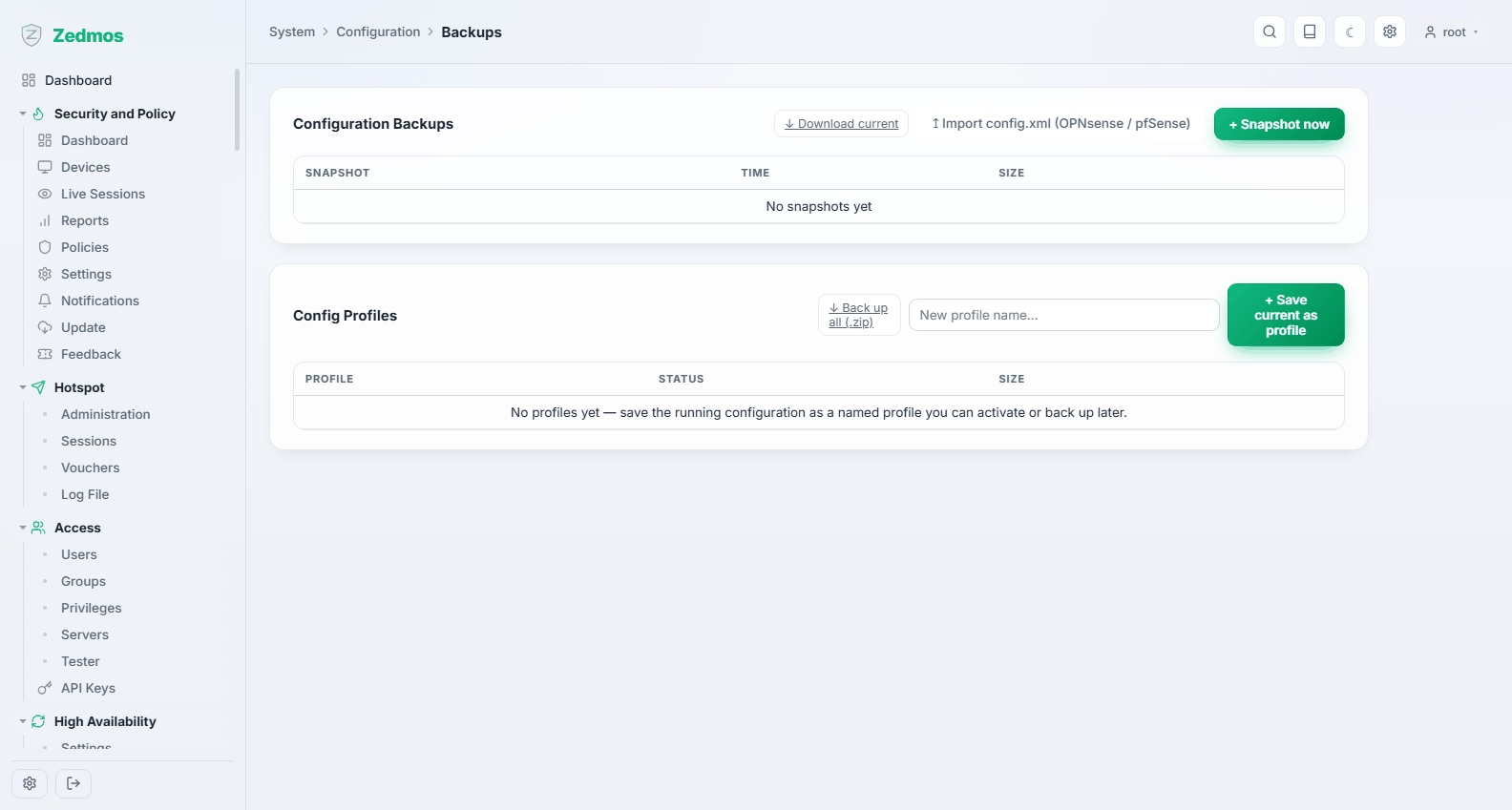
Every change the appliance has recorded, with what changed and who changed it, and the ability to go back to an earlier state. This is the fastest undo there is: when something broke twenty minutes ago and nobody is sure what was touched, the answer is here.
Defaults — /defaults
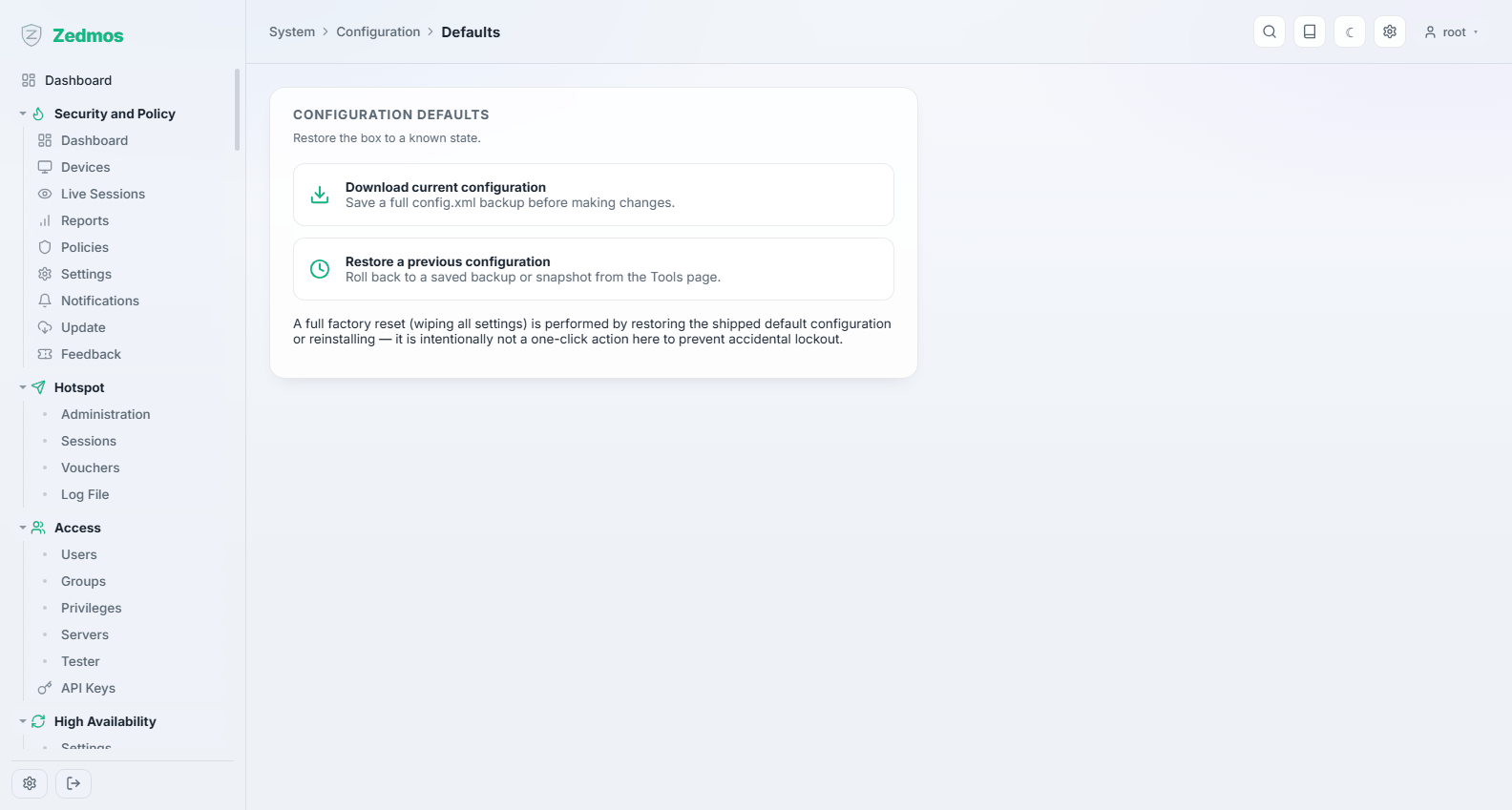
The values new objects start from. Adjusting them is how you make the appliance's conventions match your own.
Snapshots — /snapshots
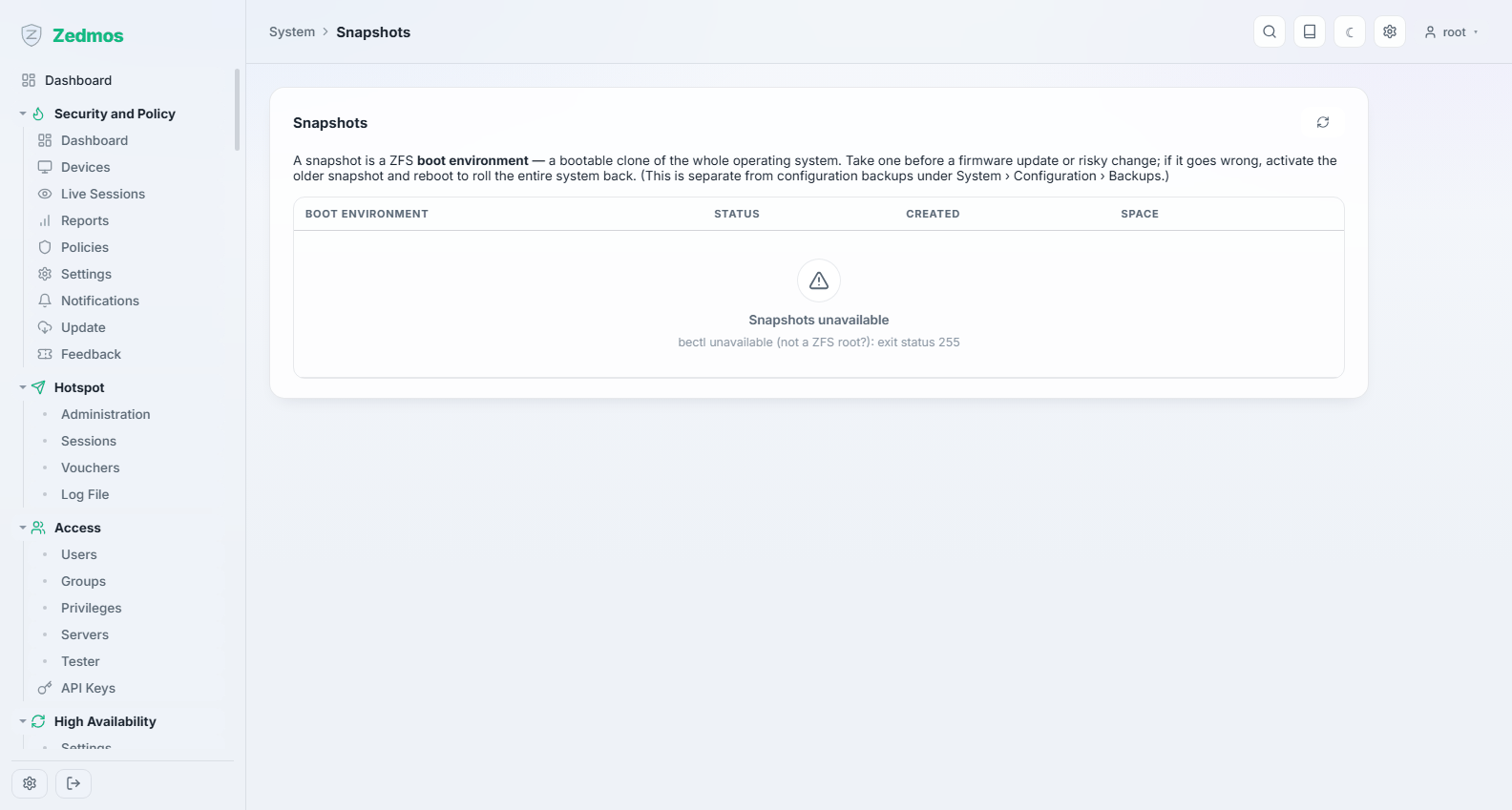
Boot environments: a snapshot of the whole operating system that you can boot back into. Different from a configuration backup — this rolls back software, not settings.
Take one before a firmware update on a box you cannot easily reach. If the new version misbehaves, you reboot into the previous environment instead of reinstalling.
Log Files
| Page | Holds |
|---|---|
General — /log/core/system | The system log: services starting and stopping, and everything without a log of its own. |
Audit — /log/core/audit | Who signed in, and who changed what. The page you keep for accountability. |
Backend — /log/core/backend | The management daemon's own log — the first place to look when the panel itself misbehaves. |
Boot — /log/core/boot | What happened during the last start, in order. A service that failed to start says so here. |
Web GUI — /log/core/lighttpd | Requests to the panel. |
PPP — /log/core/ppp | Dial-up and PPPoE sessions — the log for a DSL uplink that will not come up. |
Wireless — /log/core/wireless | Association and authentication on the radio. |
Every log page supports filtering and can be downloaded as text.
Diagnostics
Activity — /diag/activity
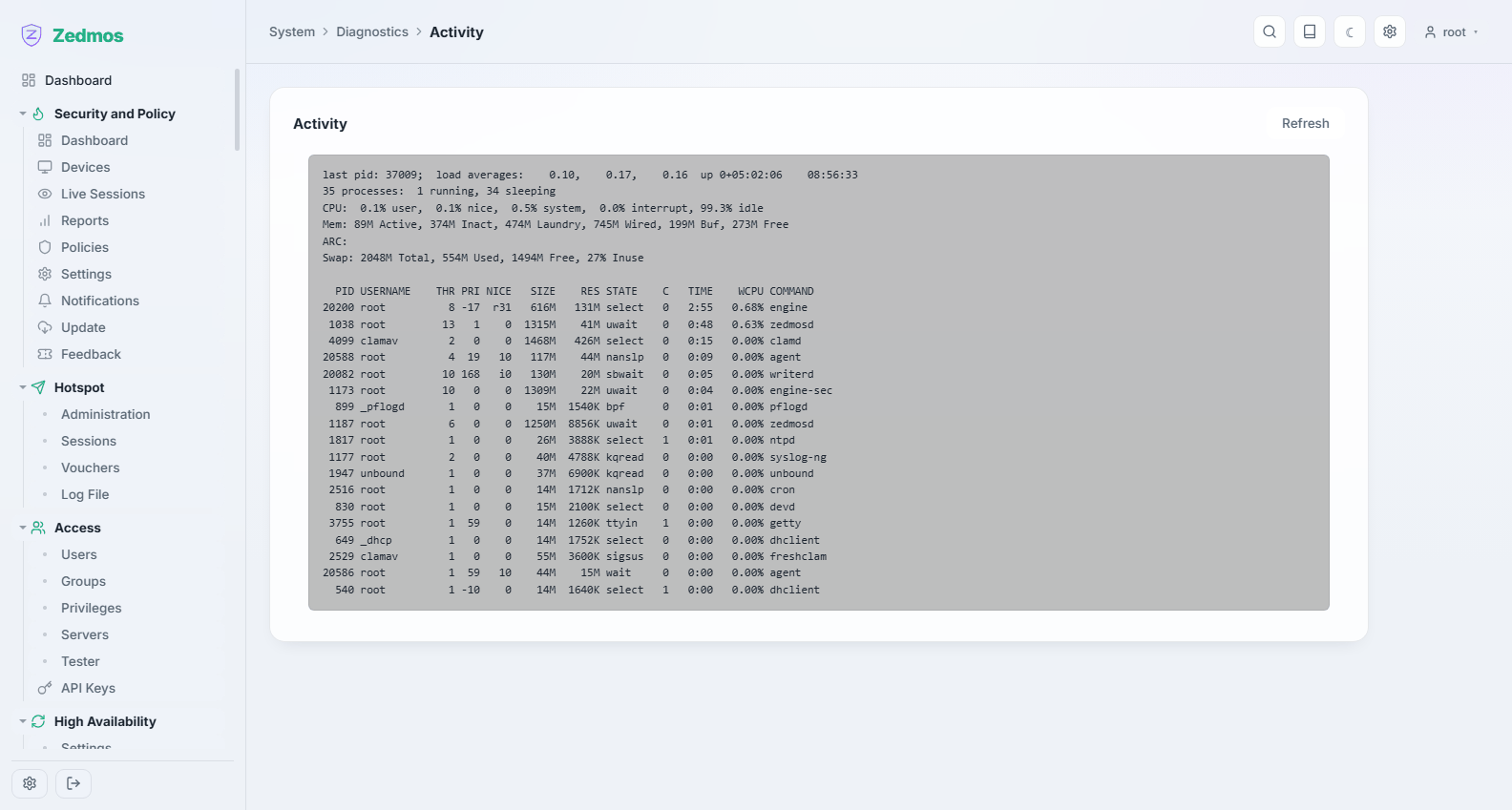
What the appliance is doing right now: processes, their CPU and memory. The page that answers "why is this box busy?".
Services — /services
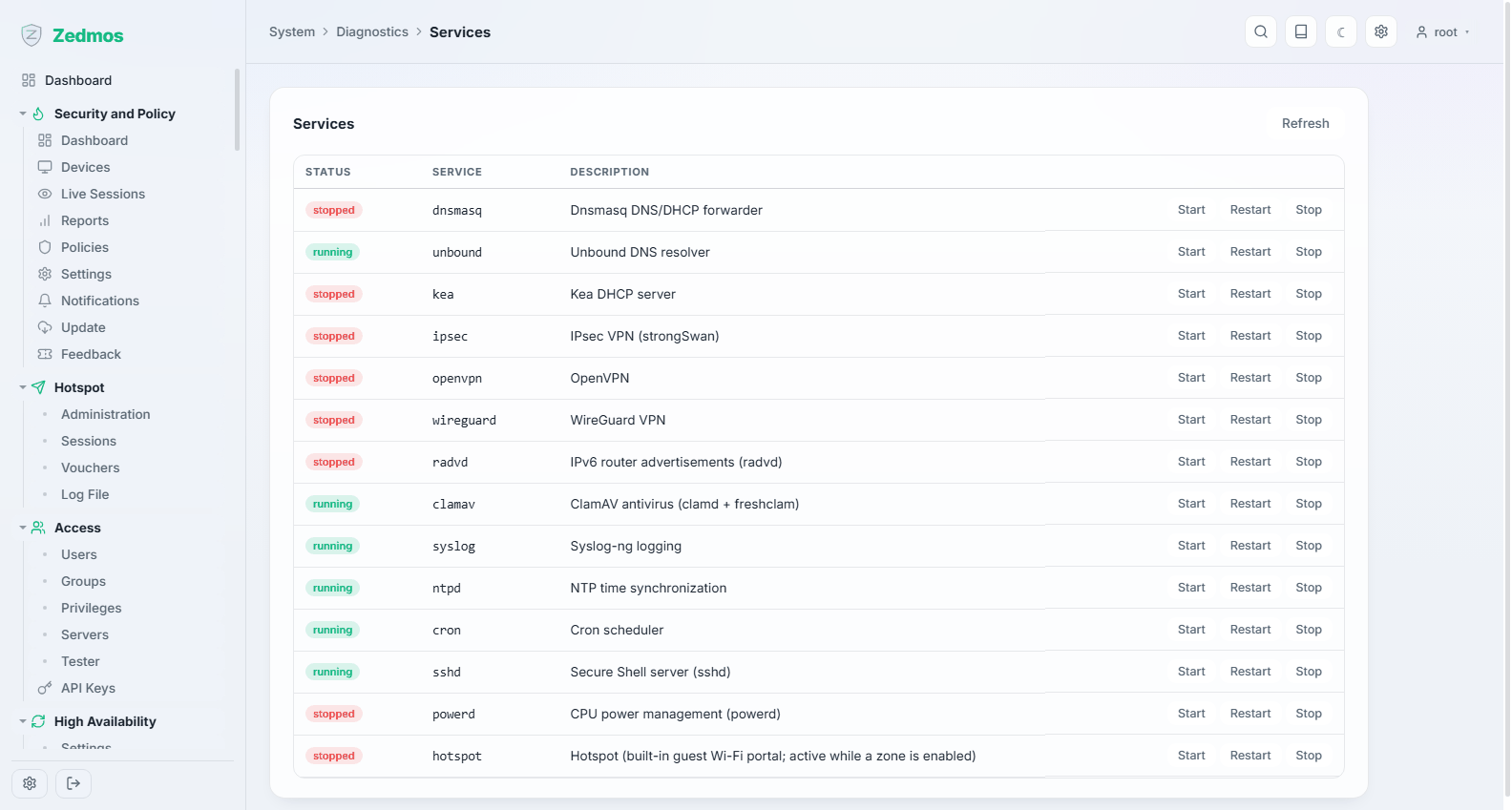
Every service with its state, and start, stop and restart in place. Restarting a service here is the supported way to do it — the appliance keeps ownership of the process rather than losing track of one you started by hand.
Statistics — /fwdiag/statistics
The firewall's counters; see Firewall → Diagnostics.
Compliance
Settings — /m/compliance/compliance
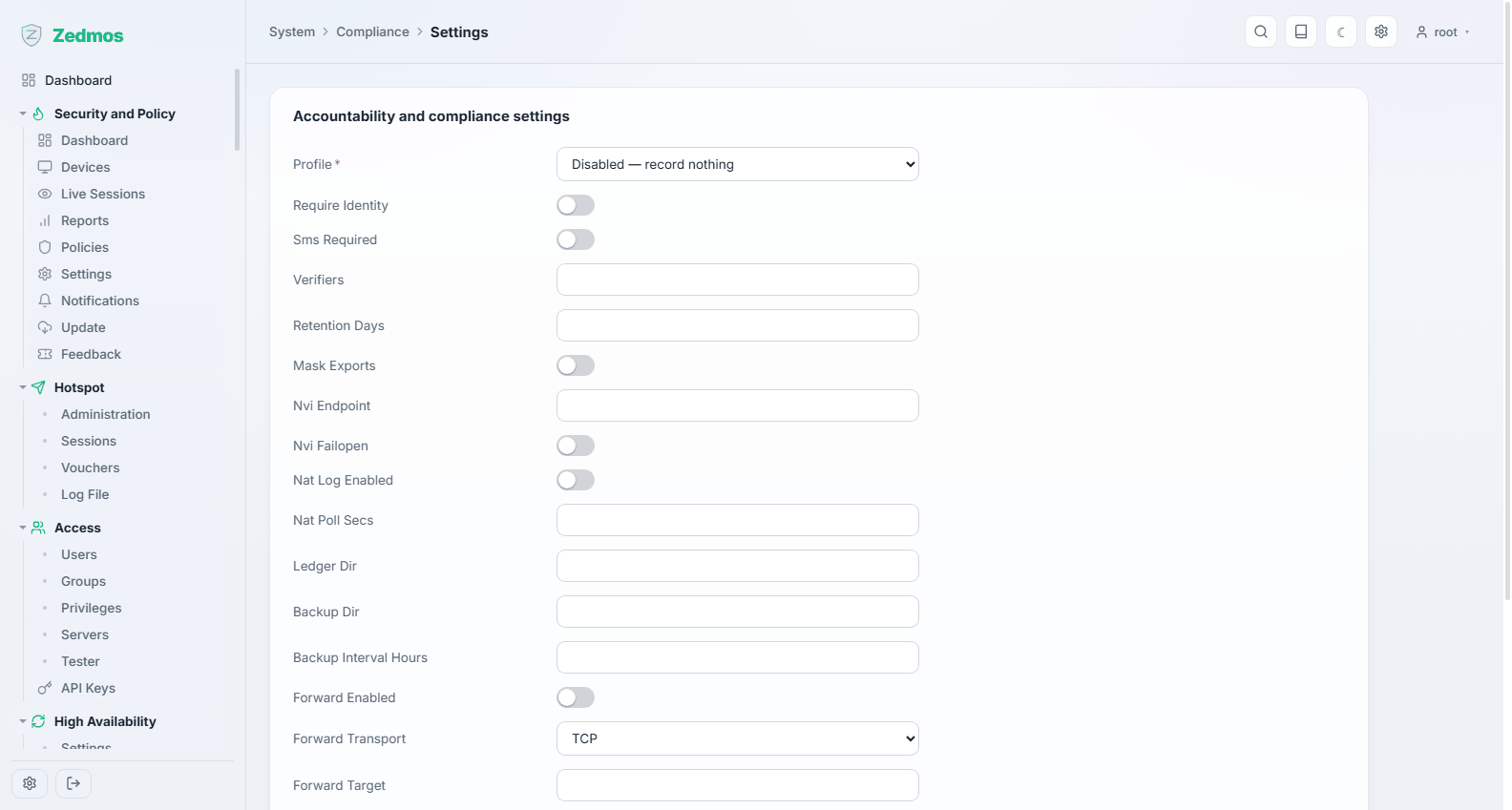
A record-keeping facility for jurisdictions that require an operator to retain certain network records. It is off by default — the Profile field starts at Disabled — record nothing — and it records nothing until you choose a profile.
What it can be asked to keep, once enabled:
| Identity | Whether a portal user must identify themselves, and whether that identity is confirmed by SMS or an external verifier. |
| NAT records | A log of address and port translations, so an external address and time can be traced back to an internal device. |
| Retention | How many days records are kept. |
| Ledger and backup | Where records are written, and how often they are copied elsewhere. Records are hash-chained so that a later alteration is detectable. |
| Forwarding | Sending records to an external collector, over a transport you choose. |
| Mask exports | Whether exported records have identifying fields masked. |
This feature does not make anything compliant. It records what an operator may be required to record; whether your configuration satisfies a particular law is a question for your own legal advice, not for this manual or for the product. Decide with counsel what must be kept, for how long, and who may read it — then configure that here.
Records — /log/core/compliance
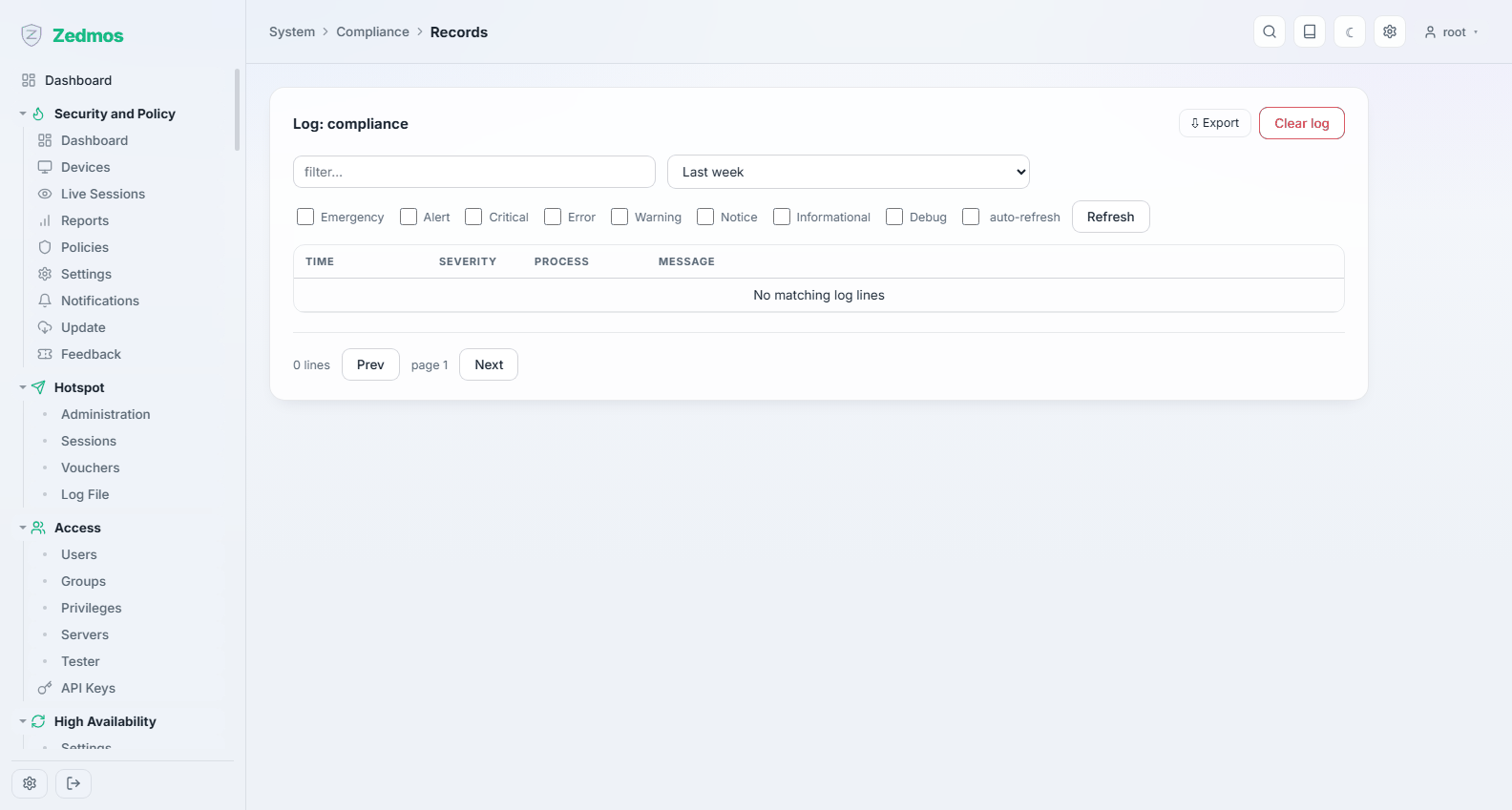
The records themselves, searchable, with their verification state.
License — /license
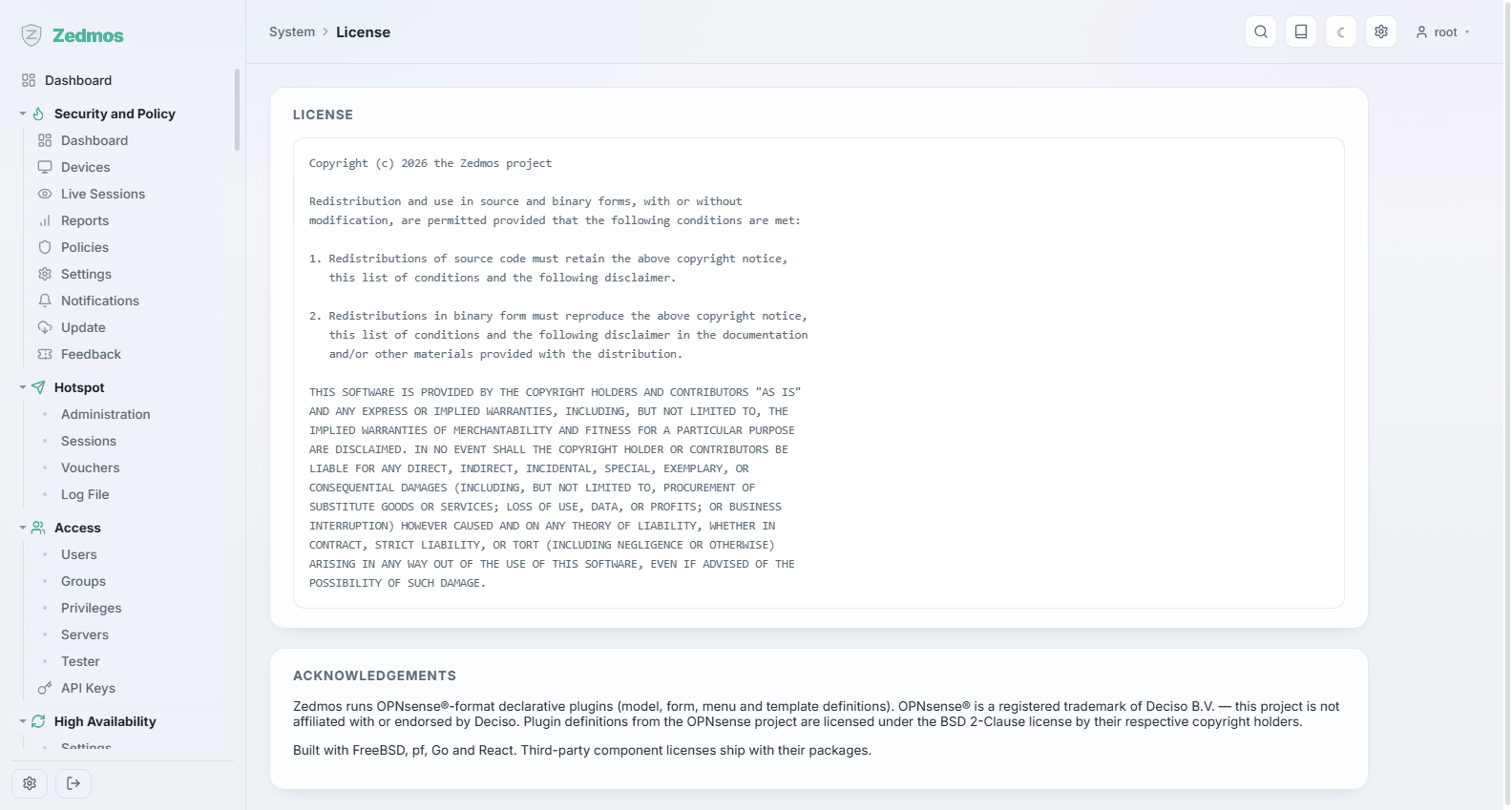
The licence this appliance runs under and what it entitles it to.
Password — /password
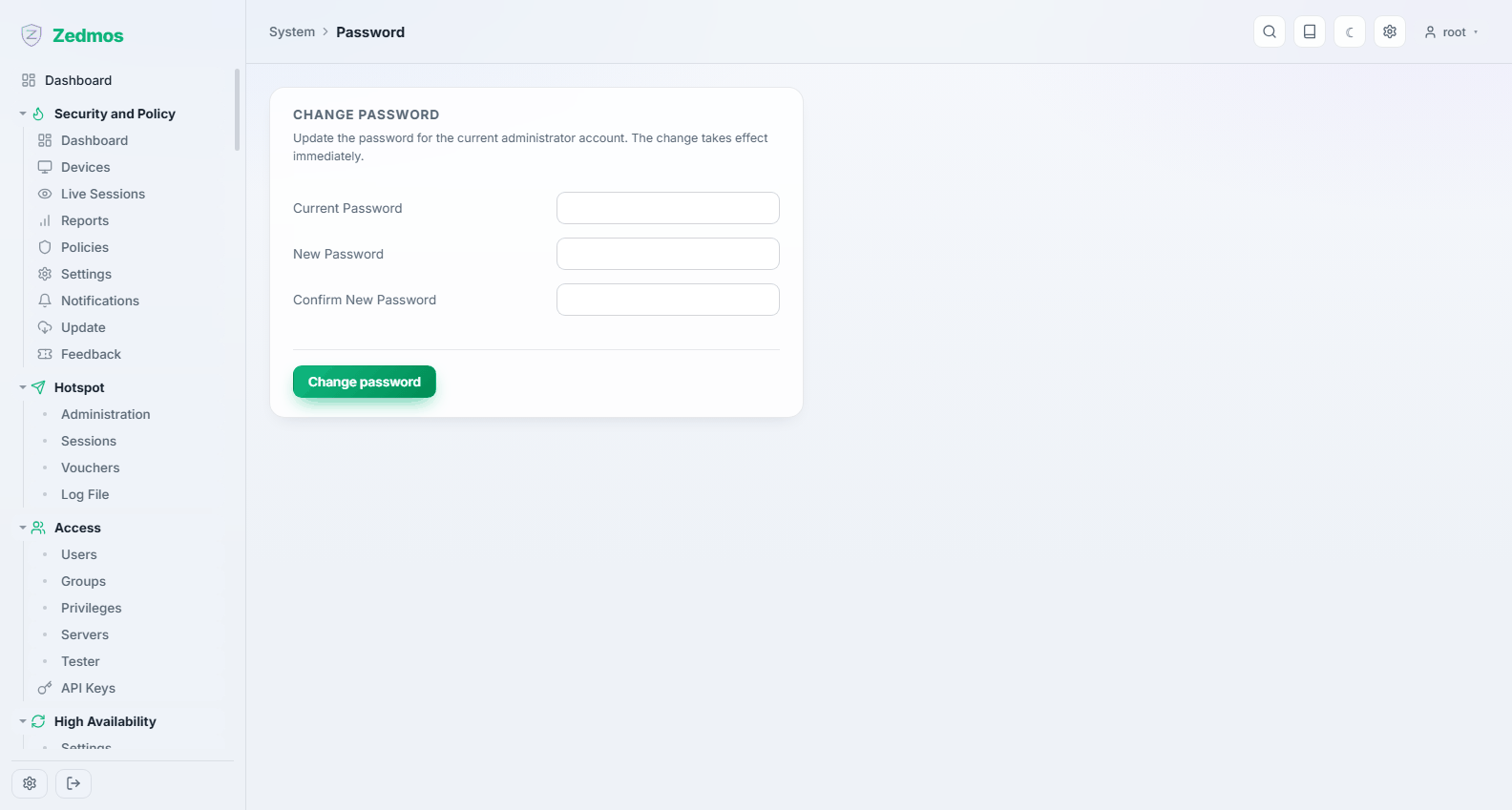
Changes the password of the account you are signed in as. Also reachable from the account menu in the toolbar.