3. The console
The console is the menu on the appliance's physical screen (or its serial line). It exists for the two situations the web panel cannot cover: the box is new and has no usable address yet, and something is wrong and the panel is unreachable.
Log in as root on the console and the menu appears.
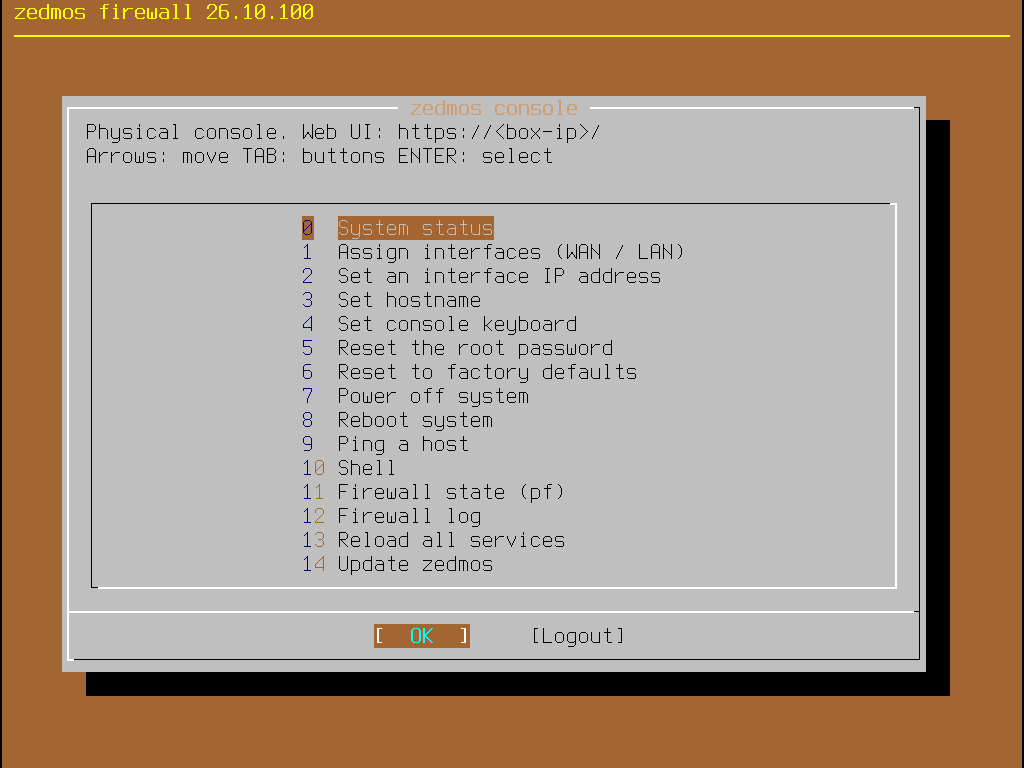
It is drawn on the physical console only — an SSH session lands in a shell, not in this menu. Its header shows the web panel's address, which is the quickest way to find out where the panel actually is.
Leave the menu with Logout: that hands the terminal back to the login prompt, so coming back needs the root password again. Do not walk away from a logged -in console.
The menu
| # | Entry | What it does |
|---|---|---|
| 0 | System status | Every physical interface with its address, the web panel's address, and the appliance's health. Start here: it usually answers the question you came with. |
| 1 | Assign interfaces (WAN / LAN) | Says which network card is the uplink and which is the internal network. This is the first thing to run on a box whose cabling you do not know. |
| 2 | Set an interface IP address | Gives an interface a static address, or switches it to DHCP, including the internal network the panel is reached on. |
| 3 | Set hostname | The appliance's name. |
| 4 | Set console keyboard | The keyboard layout for this console, including tr and tr.f. |
| 5 | Reset the root password | Sets a new root password — for the console, for SSH and for the web panel. The way back in when the password is lost. |
| 6 | Reset to factory defaults | Erases the configuration and reboots into a box that provisions itself from scratch. See the warning below. |
| 7 | Power off system | Shuts down cleanly. |
| 8 | Reboot system | Restarts. |
| 9 | Ping a host | Tests reachability from the appliance itself. |
| 10 | Shell | A root shell. Everything here is unguarded; leave it with exit. |
| 11 | Firewall state (pf) | The packet filter's live state — connections, counters — without a browser. |
| 12 | Firewall log | The filter's log, on the console. |
| 13 | Reload all services | Re-applies the configuration and restarts services. The blunt instrument for "it should be working and it is not". |
| 14 | Update | Fetches the catalogue and upgrades the appliance from its repository, showing the result. The same update as System → Firmware, for a box whose panel you cannot reach. |
Reset to factory defaults erases everything. The configuration and the state store are deleted and the appliance reboots into a first-boot box: rules, certificates, users, VPN keys — all gone. It asks first and defaults to No. Take a configuration backup while you still can (System → Configuration → Backups).
Assigning interfaces
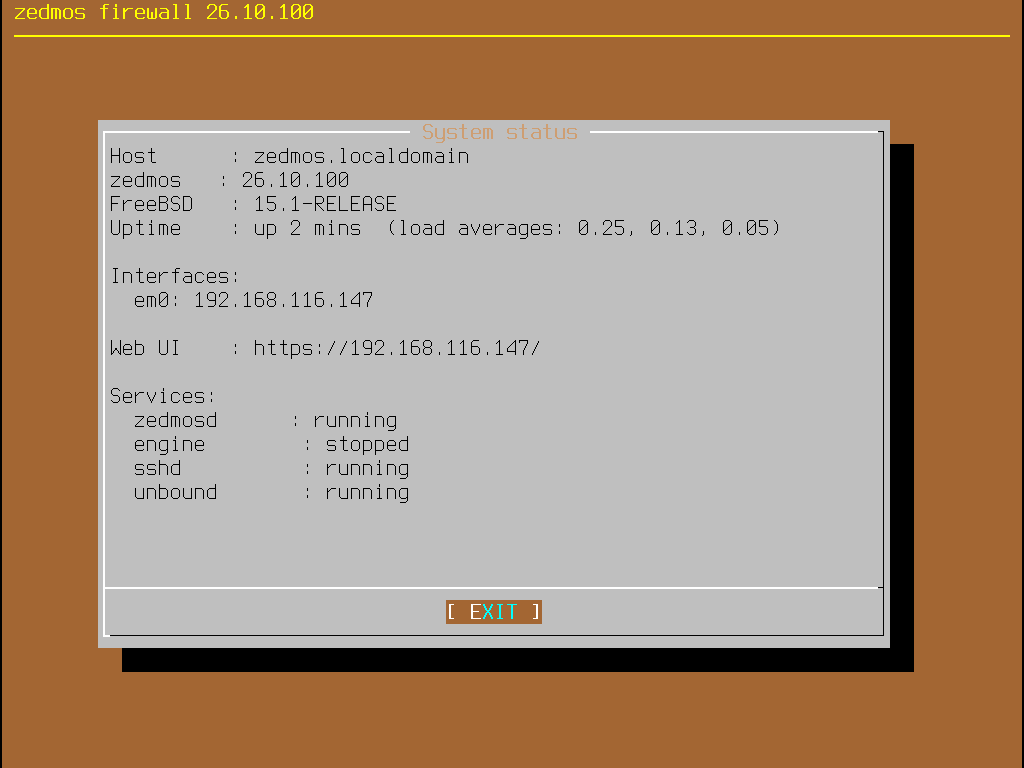
Choose Assign interfaces, and the menu lists the network cards it can see.
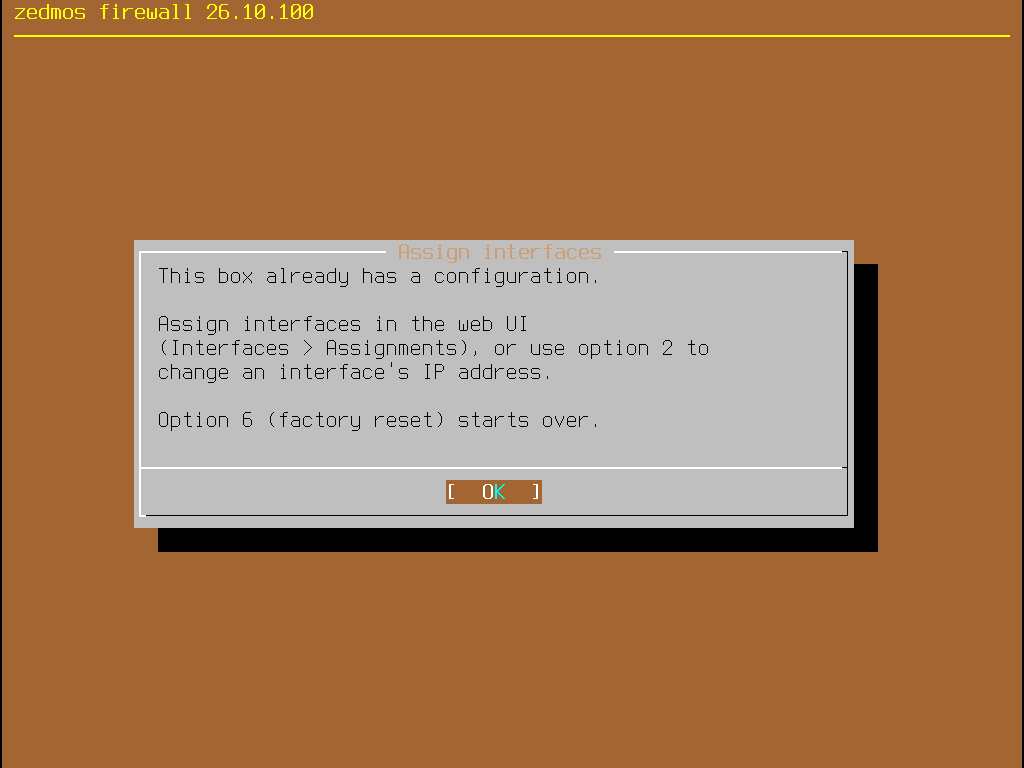
Pick the WAN — the one plugged into the upstream router or modem — and then the LAN, or none if this box has only one card.
The names are the ones the operating system gives the hardware: em0, igb1, vtnet0, ix0. Which is which depends on the machine, and the installer does not rename them. If you are not sure, the reliable method is to unplug everything but the uplink and look at System status: the card with a link and an address from upstream is the WAN.
After assigning, the appliance re-applies its configuration: the uplink starts asking for an address, the internal interface comes up, and the firewall ruleset is rebuilt to match.
Setting an address
Set an interface IP address asks which interface, then how it should get its address:
- DHCP — ask upstream. The normal choice for an uplink.
- Static — you give the address and prefix. The normal choice for the internal interface.
When you give an internal interface a static address, the appliance also proposes a DHCP range inside that network and checks it for you: a range that falls outside the subnet, runs backwards, or includes the appliance's own address is refused rather than accepted and left broken.
Changing the address of the interface you are reaching the panel through will disconnect you. That is exactly why this lives on the console: you can do it here and then reconnect at the new address.
Recovering a box you cannot reach
In the order worth trying:
- System status — is the interface up, does it have the address you expect, and is the web panel's address the one you have been trying?
- Ping a host — can the appliance itself reach anything?
- Reload all services — re-applies the configuration.
- Reset the root password — when the answer is "the panel loads but will not accept my password".
- Shell, for everything else.
tail /var/log/...and the appliance's own logs are there. - Reset to factory defaults, last, and only with a backup in hand.